.png)

The latest macOS and Windows 11 updates added a dedicated 'Passwords' app/section where you can easily remember Wi-Fi passwords without installing third-party programs.
To get the password for a wireless network your device has connected to before, you only need admin rights on your computer.
For more advanced users, the Mac Terminal and Windows Command Prompt provide the quickest way to uncover WiFi password strings using direct commands.
Forgetting Wi-Fi credentials can be frustrating, particularly when connecting a new smart home device or a guest's phone. However, a computer stores every network password that has ever been entered, acting like a secure vault.
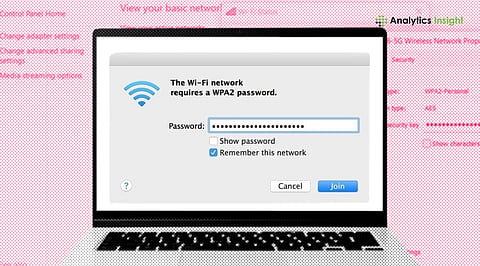
Whether running on the latest macOS Sequoia or Windows 11, both operating systems hide saved WiFi passwords to enhance security. This step-by-step guide explains simple methods to reveal hidden network credentials and restore internet access quickly.
Also Read: Things You Should Never Search on Google From Your Office Wi-Fi
Apple has made a huge jump forward in 2026. The tech giant is not only simplifying but also reducing reliance on the complicated Keychain Access app, focusing more on a user-friendly interface.
The Passwords application is the most straightforward method to manage saved Mac WiFi passwords.
First, launch the Passwords app either from the Applications folder or by using Spotlight. After logging in with Touch ID or password, choose Wi-Fi from the sidebar. Then pick the right network and just move the cursor over the black spots next to 'Password' to see it. Another option is to click the spots to copy the key directly to the clipboard.
If the system is connected to the network and requires the password instantly, go to the Settings menu.
First, go to Apple Menu > System Settings > Wi-Fi. Then click the Advanced button at the bottom of the page and click it to see the list of saved networks. Besides the network name, press the More (... ) icon and click Copy Password. This is the best way to share the password with another device via Universal Clipboard.
Also Read: Best Wi-Fi Enabled Gadgets for Small Families in 2026
Windows 10 and 11 have a few ways to see the network security key, from the old Control Panel menus to the latest Settings tiles.
Microsoft has changed the layout in order to simplify the process of locating WiFi password information without having to navigate through old menus.
Step - 1: Open Settings > Network & Internet > Wi-Fi. Step 2: Click on Manage Known Networks, then click on the network that you want to find the password for. Step 3: Near the Wi-Fi password field, press the Show button. To protect your privacy, Windows might ask for your PIN or the account password before showing the password characters.
It's a pretty straightforward and sure-fire way to get to the WiFi password on Windows 11 or 10 when the sleek settings pane is not cooperating.
Type 'Control Panel' into the Start menu search and go to Network and Internet > Network and Sharing Center. Click on your current Wi-Fi connection (usually shown in blue). Then, in the new window, hit Wireless Properties and go to the Security tab. To see the characters of the Windows WiFi password, tick Show characters under Network security key.
Use these concise commands to recover the password in a flash.
In Windows: Run Command Prompt, then input:
Netsh wlan show profile name='YourNetworkName' key=clear
The password will be displayed next to 'Key Content' in the Security settings.
In macOS: Run Terminal and input:
security find-generic-password -wga 'YourNetworkName.'
When entering the administrator password at the prompt, the key will be displayed as plain text.
Recovering a WiFi password is now simple. With the new Passwords app for Mac for capturing WiFi passwords and the updated settings for Windows for uncovering WiFi passwords, the login information is just a few clicks away.
By utilizing these built-in tools, users can confidently manage their network security key and share it with others without relying on potentially unsafe third-party applications. Keep this guide accessible for future reference in case you forget the network details.
1. Is it okay to show my network security key on my screen?
Yes, that's fine as long as you are in a secluded area. Both Mac and Windows require biometric or password authentication before the key is displayed so as to limit the exposure of the key only to the rightful users.
2. Is it possible to find out the password of a network I haven't connected to?
No. The solutions described here retrieve a WiFi password recovery only for the networks your device has been successfully connected to previously.
3. Does finding the password change it?
Absolutely not. You are only accessing the saved login information there. To alter the password, you will need to enter your router's settings through an admin login.
4. Why is 'Show Characters' greyed out on my Windows PC?
This is generally because you lack administrator rights. Make sure your user account carries Admin privileges so that you can get access to such secured info.
5. How do I share my WiFi password with an iPhone from a Mac?
When these two are in your contact list and have their Bluetooth enabled, your Mac will present you with a 'Share Password' pop-up automatically upon the iPhone's attempt nearby to connect.
