.png)

Since Android work account recovery is based on server data, emails, documents, and synced settings remain safe even after a profile is deleted.
Access is restored again through your organization's MDM provider, such as S. Intune or Google Workspace, with a new enrollment process.
Workspace. Cloud data is secure, but locally stored data (like unsynced app drafts) within the application is permanently deleted when the app is uninstalled and cannot be recovered unless a prior backup is available.
Android work profiles are one of the most effective ways to keep personal and professional data separate on a single device. However, accidentally deleting an account is more common than most users expect, and the experience can be genuinely frustrating.
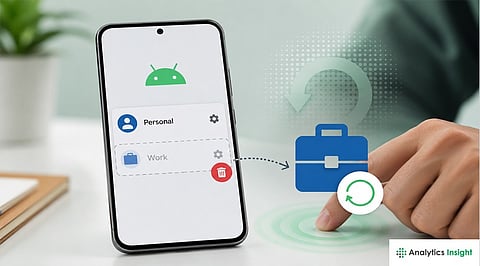
Unlike a personal photo album, a work profile is a managed container. Deleting it wipes all local files instantly. The good news is that anything stored in the cloud remains intact and recoverable. This article walks through exactly what happens when a work profile is deleted and how to restore full functionality.
So, this process is more like a fresh configuration that reconnects the device to the corporate identity.
To successfully recover deleted Android work profile settings, ensure the corporate account has not expired. Check with the IT team or log into the work email account through a browser on another device. If the account was deactivated or the license revoked, the work profile will not install.
If the device was remotely wiped after being marked lost, the IT administrator must first remove the wiped status in the management console before re-enrollment can begin.
Sometimes, ghost management applications (ghost accounts) are created by deleted profiles to block installations.
Go into Settings > Passwords & Accounts (or Accounts & Sync). Look for any remaining work account or Device Policy apps listed. If the work account is still only partially logged in, remove it from the device manually. Other things to check are Settings > Security > Device Admin Apps for any remaining old Work Profile or Intune agents and disable these leftovers. Clearing these leftovers is another important step in an Android work profile recovery
To restore the Android work profile containers, enroll using the organization's standard enrollment path. According to the company, this usually involves one of two methods:
The Portal App: Download the 'Intune Company Portal' or 'Google Device Policy' app from the Play Store. Sign in with work credentials and select 'Set up work profile' from the screen.
The QR Code Method: If the company has enabled Zero-Touch enrollment, the IT admin will generate a QR code that can be scanned.
Navigate to Settings > Google > Set up & Restore > Set up the work profile and scan the code to initiate the automated build
After the new container is generated, the Android work account recovery will be launched into the data restore.
Open the new work version of the Play Store. IT-approved apps will now begin downloading. Once Gmail or Outlook is opened in the work profile, mail, calendar, and contacts will sync from the cloud. Most managed apps now support Enterprise sync, allowing previous app settings to appear within minutes of the first login.
Also Read: Best Android Tablets on Sale Right Now: Work, Play, and Creativity Covered
Check Compliance: A re-enrolled device may appear as non-compliant. This usually means a new work-only PIN must be created or an updated Android security patch must be accepted before the profile installation can finish.
Check Google One Backups: In Settings > Backups (if subscribed), local user preferences can be restored if Work Apps were included in the device backup.
Verify the Work Tab: In Android 14 and 15, for some reason, the work profile is sometimes only paused (instead of deleted). Open the app drawer and check that the Work tab isn't just toggled off at the bottom of the screen.
Also Read: Best Low-Profile Keyboards 2026: Easy Buying Guide
A deleted Android work profile cannot be undone but access can be fully restored through re-enrollment. Since work data is stored securely in the cloud the process is straightforward and reliable. Following the re-enrollment steps and keeping the device compliant with organizational policies is all it takes to get back up and running.
1. Is there any way to restore my work profile without involving the IT department?
If you have your login details and the correct MDM app, then you can re-enroll your device yourself. If the device was 'Blacklisted' or 'Blocked' by the admin console, then your IT Department will have to unblock it.
2. Are my personal photos lost if I delete my work profile?
No, since the great thing about the Android work profile is the strict sandbox. Removing the work profile will only kill the apps with the briefcase icon, so none of your personal photos, messages, apps, or settings are affected.
3. Why are my work apps grayed out after being restored?
That shows the work profile is now paused. In most cases, you should be able to re-enable this from the very bottom of your app drawer or a shortcut in your Quick Settings tiles in your notifications menu.
4. What is this Device Policy application, and do I have to have it?
Yes. The Device Policy app is the link from your cell to your company's server. It is necessary in the recovery of the Android work profile as it establishes the trust enclave needed to house the work profile.
5. Restore a work profile. How long does this take?
The first setup takes about 5 min, but the Android work account restore of all your emails and apps could take around 15 to 30 min based on your internet connection.
