.png)

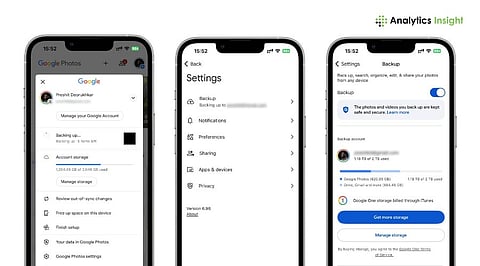
Enabling iCloud Photos ensures your images are synced, backed up, and accessible across Apple devices without manual intervention.
Storage optimization and duplicate removal help users manage growing photo libraries while freeing up valuable device space.
Built-in sorting tools like People, Places, and Search simplify the process of quickly locating memories within large collections.
iPhones are known for capturing high-quality images. However, the storage for media files decreases over time as the number of pictures and videos increases. This also makes it difficult for users to locate particular pictures. Apple addresses these issues by providing its users with built-in apps that handle automatic backups and organize pictures into various albums and categories.
You can follow these steps to ensure your data is easily accessible:
Turn On iCloud Photos
Enable iCloud Photos to back up images automatically. The feature uploads every photo and video to cloud storage and keeps the library synced across Apple devices linked to the same account.
Open Settings
Tap your name
Go to iCloud > Photos
Toggle on ‘Sync this iPhone’
The device will automatically upload new photos.
Turn on full iPhone backup to protect device data beyond photos. This setting saves app data, system settings, and other information. Users can restore the backup when they switch devices or reset the phone.
Open Settings > Apple ID > iCloud
Tap iCloud Backup
Turn on Back Up This iPhone
The device performs backups when it connects to Wi-Fi, remains locked, and is charging.
Also Read: Top 10 Photo Sharing Apps For Photographers in 2025
Large photo libraries consume storage quickly. Apple allows users to store full-resolution files in the cloud and keep smaller versions on the device. This setting helps users capture photos without frequent deletions.
Open Settings > Apple ID > iCloud > Photos
Select Optimize iPhone Storage
The system frees local space when storage levels drop.
Use Automatic Sorting in the Photos App
The Photos app groups images using face recognition, location data, and timelines. These tools help users locate photos faster and reduce manual sorting.
Features:
‘People’ albums group recognised faces
‘Places’ view sorts images by location
‘Months’ and ‘Years’ views improve navigation
‘Search’ finds photos using keywords
Users can rely on these features for everyday organisation.
Duplicate files increase clutter and reduce available storage. Apple provides a built-in option to merge them.
Open the Photos app
Scroll to Utilities > Duplicates
Tap Merge
The system keeps the best-quality version and removes extra copies.
Users should create a small number of broad albums such as Travel, Work, Family, or Screenshots. Occasional sorting keeps important photos easy to access. This approach supports automated organisation without daily effort.
Also Read: Apple is About to Simplify Photo Uploads from iPhone to Third-Party Apps
Users can keep their photo collections safe and neatly organized by enabling iCloud syncing, setting up automatic device backups, and using the simple organizational tools available. Once these settings are enabled, the process is almost effortless.
New photos are uploaded automatically, photos are updated, and memories are kept safe even if the phone is lost or damaged. Smart search and grouping features help you find photos by date, location, or person. With little effort, you can ensure your photos are safe, clean, and organized.
1. How can I automatically back up iPhone photos?
Users can enable iCloud Photos and iCloud Backup in Settings. Once activated, the iPhone uploads new photos to cloud storage automatically when connected to Wi-Fi.
2. Will organising photos affect the original image quality?
No. The Photos app keeps original full-resolution files in iCloud. If storage optimization is enabled, the device stores smaller versions without changing originals.
How do I find duplicate photos on my iPhone?
Open the Photos app, scroll to Utilities, and tap Duplicates. The system identifies similar images and allows users to merge them easily.
3. Can I access organised photos on other Apple devices?
Yes. When iCloud Photos sync is activated, users can view their organised library across iPhones, iPads, and Macs signed in to the same Apple account.
4. What happens to photos if I lose my iPhone?
If iCloud backup and syncing are enabled, users can restore their photo library on a new device by signing in. This ensures memories remain safe.
