.png)

Explains how to sign in to Gmail on desktop and mobile using passwords, passkeys, and Google Prompts.
Details Gmail account recovery steps if you forget your password or get locked out.
Highlights 2026-ready security tips, including two-step verification, passkeys, and safe sign-in practices.
With over 1.5 billion users worldwide, Gmail is still the foundation for modern communication, underpinning everything from travel notifications and employment notifications down to newsroom updates, team collaborations, or otherwise. As we embark on the new year of 2026, the notion of signing into a Gmail account is no longer about merely entering a password.
Here’s how to sign in to your Gmail account in 2026 with ease, what has changed in the sign-in process, and what you can do to keep your account protected as Google's security tools continue to evolve.
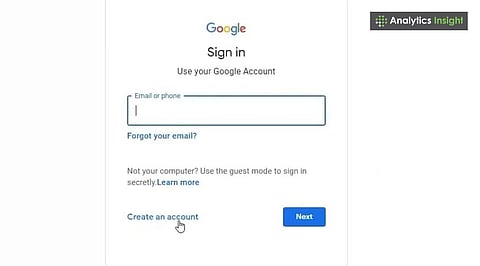
The traditional login into the Gmail account has not changed much. One can log into his/her Gmail account by opening the Gmail service, entering his/her Google Account email or phone number, and authenticating to get access to the inbox.
The difference, however, comes from the shift towards passwordless logins. Google now encourages its customers to create passkeys that enable the users to sign into their accounts via fingerprint, face recognition, or device screen lock rather than via a password.
Google Prompts can be used as the alternative of the authentication method, while passkeys offer security without additional 2-Step Verification process.
The principle is very simple – make things easier for legitimate users and complicated for hackers.
Before you begin the process, make sure:
Your Gmail address or phone number
Your current password, a passkey-enabled device or another available authentication method.
A stable internet connection
Your phone is nearby if you use Google prompt, verification codes, or another phone-based verification method.
You won't necessarily need your phone every time you sign in. If your passkey is stored on the device you're using, you may simply be asked to unlock that device using your fingerprint, face scan or PIN.
Logging into Gmail on a laptop or PC remains simple, although the authentication option you see can vary depending on your account and security settings:
Open a browser and type Gmail.com.
Enter your email or phone number and select Next.
Google may ask you to enter your password or may offer a passkey if one is available.
If you choose a passkey, follow the on-screen instructions to verify yourself using your fingerprint, face recognition or device PIN.
If you want to use another sign-in method, select “Try another way” and choose one of the options Google provides.
You’re in your inbox.
Quick tip: If another account is currently signed in, click Use another account.
On a smartphone, the Gmail app makes switching between accounts relatively straightforward. To add another Google account:
Open the Gmail Application
Click your profile picture (top right)
Check Select Add another account > Google
Put your email and continue the verification process
If you have passkeys turned on, you only need fingerprint or facial recognition unlocking.
Also Read: How to Use Gmail’s New Tool to Declutter Your Inbox?
Forgetting a Gmail password does not necessarily mean you have lost access to the account. Google provides an account recovery process that uses the information and devices associated with your account to establish that you are the legitimate owner.
Click ‘Forgot email?’ or ‘Forgot password?’ from the sign-in screen
Verify using recovery phone number, backup email, or device
Follow the step-by-step instructions from Google
Pro tip: Update recovery information under
Google may also continue sending verification codes to your previous recovery information for up to seven days after certain recovery or authentication details are changed.
It is one habit that may save hours of stress in the future.
Two-step verification (2SV) adds another layer of protection to your Google Account. That extra step can help protect the account even if someone manages to obtain your password.
However, the arrival of passkeys has changed how users experience 2SV. When you sign in with a passkey, Google can treat that authentication as sufficient, meaning you may not be asked to complete a separate second step.
To enable it:
Go to your Google Account
Go to Security & sign-in
Under How you sign in to Google, select Turn on 2-Step Verification
Follow Google's instructions to select the verification methods available for your account
Google supports several verification methods, including Google Prompt, Authenticator App, SMS or voice verification, security keys, backup codes and passkeys.
Google recommends Google Prompts over SMS in situations where users are not using a passkey. For stronger phishing protection, Google also recommends passkeys and security keys.
Apart from logging in, taking care of intelligent account hygiene is even more important than ever because:
Don’t remain ‘logged in’ on shared devices and computers in public areas.
Use incognito or guest browsing when accessing Gmail from other accounts
Monitor activity on devices and sign-ins for patterns
Go to Google's Security Checkup to identify vulnerabilities
Passkeys are particularly useful because they are designed to resist phishing. Instead of asking you to type a password that could potentially be stolen, they use cryptographic credentials linked to your device or passkey provider.
Another important habit is to pay attention to unexpected Google Prompts. If you receive a sign-in request while you are not trying to access your account, reject it and investigate the activity.
If standard recovery fails:
Follow the identity verification steps carefully
Check for alerts related to suspicious activity.
In cases where hacking is suspected, Google’s security features can help you regain control and protect your account.
Also Read: Easy Steps to Log Into Gmail When You Forget Your Password
Gmail sign-in in 2026 is still easy for most users, but the experience is becoming noticeably more security-focused. The password is no longer the only route into your account, with passkeys, Google Prompts, Authenticator, security keys and other verification methods now playing a larger role.
For users who have created a passkey, signing in can be as simple as unlocking a device with a fingerprint, face scan or PIN. At the same time, users who continue using passwords can still access Gmail through the traditional sign-in process.
Whether you access your emails using your work laptop, smartphone or tablet, keeping your recovery details updated and checking your account's security settings regularly can help prevent a small sign-in problem from becoming a bigger account-access issue.
The biggest shift is that Gmail is gradually moving away from a password-first experience. Passkeys give users another way to authenticate without entering a password, while Google continues to maintain other options for people who need them.
How do I log into my Gmail account?
Open Gmail, enter your email address or phone number, and select Next. Depending on your security settings, Google may ask for a password, passkey, Google Prompt or another method.
What should I do if I forget my Gmail password?
Select ‘Forgot password?’ on the sign-in screen and follow Google’s recovery steps. You may need to verify your identity using your recovery phone, email address or another method.
Can I stay signed in to Gmail on my device?
Yes, you can remain signed in on a trusted personal device. However, always sign out after using Gmail on shared, public or workplace computers to protect your account.
What is two-step verification in Gmail?
Two-Step Verification adds an extra layer of account security during sign-in. Depending on your settings, Google may use Prompts, verification codes, Authenticator, security keys or other supported methods.
How do I sign out of Gmail on a shared computer?
Click your Google Account profile picture in the top-right corner and select ‘Sign out’. Always do this on shared or public computers to prevent others from accessing your Gmail account.
