.png)

Whitelisting ensures trusted emails always land in your inbox and not the spam folder.
Gmail users can create filters or add trusted senders to contacts to prevent emails from going to spam.
Outlook users can add safe senders or domains in settings to keep important messages from being filtered.
Email inboxes today are smarter, faster, and far more aggressive about blocking unwanted messages. Advanced spam filters now scan behavior, reputation, and content in real time, which means even legitimate emails can be misclassified. For individuals and businesses that depend on alerts, invoices, and newsletters, understanding email whitelisting has become a practical necessity, not a technical luxury.
Have you ever missed an important email and discovered it buried in spam hours later? This frustration is why learning how to whitelist emails in 2026 matters. With a few simple settings, trusted senders can go through the filters and be seen just as timely, stress-free, and important in an increasingly crowded inbox environment today.
Also Read: How to Whitelist Emails in 2025: A Step-by-Step Guide
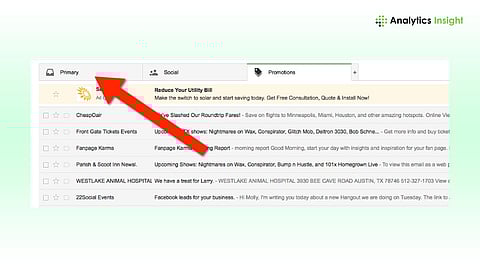
The best method for whitelisting emails in Gmail is by creating a filter. To begin, launch your Gmail account, click on the settings icon, and navigate to Filters and Blocked Addresses. Create a new filter by entering the sender's email domain and checking the box for Never send it to Spam before you save it. This way, emails from trusted sources will go directly to the inbox, and will also prevent emails from being marked as spam.
To whitelist emails in Outlook, click the settings (gear icon) and select View all Outlook settings. First, go to Mail and then select Junk Email settings. Under Safe senders and domains, add the email addresses or entire domains you trust. After saving these changes, all messages from the listed entries will be directly placed in your inbox instead of the spam or junk folder. This approach applies to the users of Outlook.com and Microsoft 365.
Yahoo Mail also supports whitelisting by creating a custom filter that moves trusted senders to the inbox. Apple iCloud users can set rules in Mail preferences to always deliver messages from chosen addresses. Across mobile apps, the key step often involves marking messages that landed in spam as Not Spam to signal the system they’re safe.
Also Read: Gmail Spam Filter: How to Stop Emails Going Into Spam
Email whitelisting is no longer just a helpful trick in 2026, but a smart habit for staying connected in a highly filtered digital world. It is now not necessary to constantly check the inbox, since important emails are always visible, timely, and easy to act upon just by selecting the key senders for a few minutes.
As spam detection continues to evolve, proactive inbox management becomes essential for both individuals and businesses. Whitelisting emails across platforms ensures that communication stays critical and never gets lost, thereby creating a calmer and more trustworthy email experience every day.
1. Why is email whitelisting important in 2026?
Email whitelisting ensures trusted senders bypass spam filters, so important alerts, invoices, and newsletters consistently reach the primary inbox folder.
2. How can emails be whitelisted in Gmail?
In Gmail, users create filters, add sender addresses or domains, and select Never send to Spam within the account settings menu.
3. What is the easiest way to whitelist emails in Outlook?
Outlook allows adding trusted addresses to Safe Senders, ensuring future emails land in the inbox instead of the junk folders automatically.
4. Do other email services support whitelisting?
Yahoo and iCloud support whitelisting through filters or rules that automatically deliver selected senders to the inbox without spam interruption issues.
5. How does whitelisting work on mobile email apps?
On mobile apps, marking an email as Not Spam trains filters to trust similar future messages from the same sender consistently.
