.png)

Explains how to sign in to Gmail on desktop and mobile using passwords, passkeys, and Google Prompts.
Details Gmail account recovery steps if you forget your password or get locked out.
Highlights 2026-ready security tips, including two-step verification, passkeys, and safe sign-in practices.
With over 1.5 billion users worldwide, Gmail is still the foundation for modern communication, underpinning everything from travel notifications and employment notifications down to newsroom updates, team collaborations, or otherwise. As we embark on the new year of 2026, the notion of signing into a Gmail account is no longer about merely entering a password.
Here’s how to sign in to your Gmail account in 2026 with ease, and how to keep your account safe as Google’s security tools continue to develop.
The fundamentals of how you sign in to Gmail haven’t changed, but it’s becoming more and more of a security-centric experience. You can sign in using a password if you like, but Google is pushing users towards using passkeys, Google Prompts, and device verification. There is a greater role for artificial intelligence in identifying potential sign-in threats and preventing them from reaching your mailbox.
The goal is simple: faster access for you, tougher barriers for attackers.
Before you begin the process, make sure:
Your Gmail address or phone number
Your current password or passkey device
A stable internet connection
Your phone in proximity (for when you need prompts or two-step verification processes)
This will avoid failed tries. Having them ready will also prevent temporary lockouts.
Logging in using a laptop or PC is still simple:
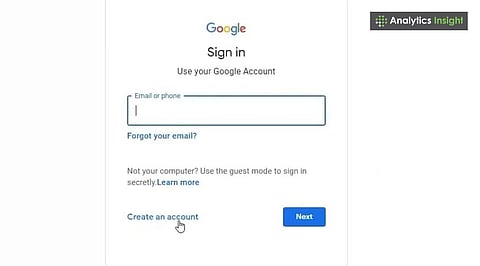
Open a browser and type www.gmail.com
Please enter your email or phone number and select Next
Type in the password or confirm the sign-in request using Google Prompt/passkey
You're in your inbox
Quick tip: If another account is currently signed in, click Use another account.
That’s especially true on smartphones, where Gmail on your device increasingly integrates with:
Open the Gmail Application
Click your profile picture (top right)
Check Select Add another account > Google
Put your email and continue the verification process
If you have passkeys turned on, you only need fingerprint or facial recognition unlocking.
Also Read: How to Use Gmail’s New Tool to Declutter Your Inbox?
Account Recovery in 2026 Becomes More Automated But More Secure:
Click ‘Forgot email?’ or ‘Forgot password?’ from the sign-in screen
Verify using recovery phone number, backup email, or device
Follow the step-by-step instructions from Google
Pro tip: Update recovery information under
Google Account > Security > Ways we might verify who you are
It is one habit that may save hours of stress in the future.
Two-step verification (2SV) is the norm and for the right reasons. With or without a password breach, unauthorized users will not gain access.
To enable it:
Go to my account
Go to Signing in to Google
Enable 2-Step Verification
Google Prompt, Authenticator App, SMS, or security key
Google also encourages the use of passkeys, which are a substitute for passwords, phishing-resistant, and do not require changing.
Apart from logging in, taking care of intelligent account hygiene is even more important than ever because:
Don’t remain ‘logged in’ on shared devices and computers in public areas.
Use incognito or guest browsing when accessing Gmail from other accounts
Monitor activity on devices and sign-ins for patterns
Go to Google's Security Checkup to identify vulnerabilities
Today’s threat detection tools with AI produce warnings about suspicious activity much quicker, but it’s still up to the human to take action.
If standard recovery fails:
Follow the identity verification steps carefully
Check for alerts related to suspicious activity.
In cases where hacking is suspected, Google’s security features can help you regain control and protect your account.
Also Read: Easy Steps to Log Into Gmail When You Forget Your Password
Gmail sign-in 2026 aims to be user-friendly and non-lenient when it comes to attackers. Whether you access your emails using your work laptop, tablet/computer phone, it is essential to keep your recovery information up-to-date and enable either two-step verification or passkeys. Some forward thinking is required, starting with authenticating, being aware of devices, and scanning for security. Using Gmail can be business as usual, but keeping it secure has never been more critical.
1. How do I log into my Gmail account?
Go to gmail.com, enter your email and password, then click ‘Next.’ On phones, use the Gmail app and follow similar steps.
2. What if I forgot my Gmail password?
Click ‘Forgot password?’ on the login screen and follow Google’s account recovery steps using your phone number or backup email.
3. Can I stay signed in on my device?
Yes. Tick ‘Stay signed in’ during login on trusted devices to avoid entering credentials repeatedly.
4. What is two-step verification in Gmail?
It’s a security feature that asks for a code or prompt after password entry, protecting your account from unauthorized access.
5. How do I sign out of Gmail on shared computers?
Click your profile icon on the top right, then select ‘Sign out’ to protect your privacy on public or shared devices.
