.png)

Learn how iPhone tools filter spam messages without deleting important conversations daily
Understand reporting and blocking steps that reduce scams and silence repeat spammers effectively
Use built-in settings to keep the inbox clean, focused, and safer long term
Spam messages are not just annoying anymore; they are relentless. Fake delivery alerts, predatory loan offers, phishing scams, and prize notifications flood your phone daily. Each one is designed to manipulate you into clicking, calling, or handing over personal information.
Apple's messaging filters can stop most of this before it reaches you. If used properly, these built-in tools let you reclaim your inbox, sidestep scams, and keep your actual conversations visible.
Spam texts reach users because mobile numbers are widely circulated. Online registrations, data leaks, promotional databases, and automated number generators all feed the spam ecosystem. A large share of these messages arrives via SMS rather than iMessage, which limits Apple’s ability to block them before delivery.
Not all spam messages are the same. Some marketing efforts use aggressive tactics, while others present themselves as legitimate banking operations, delivery services, or government institutions. Apple cannot block all network messages, but iOS provides users with sufficient controls to handle their inbox contents and determine the importance of spam messages.
Also Read: Google Messages Enhances User Safety with Sensitive Content Warnings and Improved Spam Detection
The most effective initial step is a single solution that requires no additional software. The process operates by distinguishing between known contacts and unknown phone numbers.
Users can enable filtering by:
Opening Settings
Tapping Messages
Switching on Filter Unknown Senders
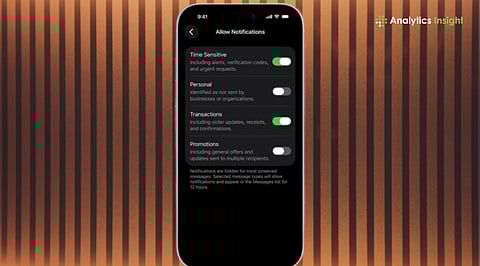
The Messages application creates two distinct chat categories, which include Known Senders and Unknown Senders, after users turn on its automatic chat categorization feature. The system blocks the display of messages from numbers that users have not saved in their Contacts, and it keeps their notifications in silent mode. The system allows users to see their personal and work communications, while automatically hiding potential spam messages from view.
Reporting spam plays a longer-term role in improving detection. When the option appears within a message thread:
Open the suspicious message
Tap Report Spam or Delete & Report Spam
Confirm the action
The message is deleted and shared with Apple for analysis. In certain areas, the system delivers this information to mobile network operators. The act of reporting does not stop all similar messages from appearing immediately, but through multiple reports, the system improves its filters and enhances its ability to detect spam patterns in future cases.
Also Read: How to Stop Spam Calls on Your Phone: Easy Fixes That Actually Work
Blocking is the most direct way to stop repeat offenders. To block a sender:
Open the spam message
Tap the sender’s number or name at the top
Select Info
Tap Block this Caller
The number becomes unable to send messages, make calls, and start FaceTime calls after the user blocks it. The system creates a complete list of blocked contacts, which users can access through Settings > Messages > Blocked Contacts to review and remove contacts at any time.
Filtered messages are not deleted automatically, which allows users to review them when needed. To access them:
Open Messages
Tap Filters at the top
Select Unknown Senders or Spam
This matters because legitimate messages, such as delivery updates, appointment reminders, or one-time passwords, can occasionally be misclassified. If a genuine message ends up in these folders, marking it as Not Spam moves it back to the main inbox.
Built-in tools work best when paired with a few consistent habits:
Saving trusted numbers in Contacts
Avoiding links or attachments from unknown senders
Not replying to suspicious promotional texts
Keeping iOS updated to benefit from improved spam detection
Users can expect to receive spam messages that will persist, but will not consume their entire available time. Users can achieve an 80% reduction in interruptions through 3 operational methods: filtering, reporting, and blocking. The result is an inbox containing only essential messages that reflect the original purpose of smartphones: receiving useful communication rather than nonstop interruptions.
1. Does filtering unknown senders delete messages automatically?
No. Filtering only separates messages from unknown numbers into a different folder. Messages remain available for review and can be moved back to the main inbox if required.
2. Will reporting spam stop similar messages immediately?
Reporting spam does not block messages instantly. It helps Apple and carriers improve detection over time, reducing the chances of similar messages reaching users in the future.
3. Can blocked numbers still leave voicemails or call users?
Blocked numbers cannot call, text, or FaceTime users. Calls are silenced and messages are not delivered, keeping communication from those numbers completely restricted.
4. Why do some genuine messages appear as spam or unknown?
Messages from new senders, automated systems, or delivery services may be misclassified. Users can review these folders and mark genuine messages as not spam.
5. Are third-party apps necessary to block spam on iPhone?
Not necessarily. Built-in filtering, reporting, and blocking tools on iPhone are sufficient for most users, without installing additional apps.
