.png)

Google's passkeys use public-key cryptography, which makes the account practically resistant to remote credential theft and phishing.
This feature enables Google password-free login using one’s device's fingerprint, face scan, or screen lock PIN.
After configuring passkeys in Google account settings, they will sync across devices via Google Password Manager so you can use them immediately.
Passwords have long been the weakest point in Google account security. They are often easily guessed, leaked, reused, and forgotten. Google's passkey-first strategy addresses all of that by turning a personal device into the authentication key itself, one that stays with the user and never gets shared with a server.
The result is an account that is 99.9% more resistant to compromise. Not only the security gains, but passkeys also make the login experience simpler, just a fingerprint tap or a face scan, and access is granted.
Creating a passkey only takes a moment, but it makes the account far more secure against being hacked.
To start, access the all-in-one security dashboard for a Google account.
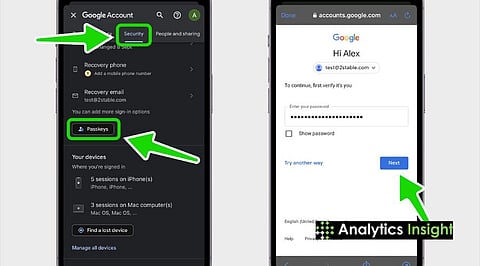
Open a browser or Google app on a smartphone (such as Gmail). Tap the profile picture/icon at the top right corner. Select 'Manage Google Account.' In the horizontal menu, choose the Security tab. This menu bar includes protection layers such as the current password, two-step verification, and security questions.
Also Read: How to Set Up and Use Apple iPhone Passkeys for Secure Logins
Google has simplified the interface, making passwordless login easy.
Scroll further down to the 'How to sign in to Google' section and look for 'Passkeys and security keys.' A final password confirmation may be required to verify account access. After that, a list of devices already signed in with passkeys, such as existing Android phones, will appear. To manually generate a new passkey, select the 'Create a passkey' button.
This is the last step to access the Google account with passkeys enabled on the current device.
A system prompt will appear asking for the device’s screen-lock method, such as fingerprint, Face ID, or a passcode. Once verified, the device creates a unique cryptographic key pair; the public key is shared with Google, while the private key stays securely stored within the device hardware. After the Passkey confirmation appears, passwordless login can be used for future sign-ins.
Phishing Immunity: Remember, this is not a password; this is a passkey. So no one can even enter it into a spoof site in the first place. We configure the browser so the passkey can only work with the correct domain (google.com).
No Second Step Required: Since the passkey demonstrates possession of the hardware and the key also presents the biometric, a single tap replaces both the password and 2FA.
Access without internet: When logging in on a new computer nearby, log in using the passkey of the phone, thanks to a Bluetooth handshake and a QR code, even if the computer is not yet set up for it.
Also Read: Mercuryo Launches Passkey for Encrypted, Fast Web3 Payments
Moving to Google Passkeys is the best way to secure your digital identity. By setting up passkeys in Google account settings, users can replace an old, weak password with modern cryptographic protection. After all, a passwordless Google login system is always faster, easier, and safer.
1. What if I lose my passkey device?
Because passkeys are synced through Google Password Manager, access may still be restored using another synced device. If access is completely lost, recovery options such as a recovery email or phone number can still be used.
2. Can I continue to use my password?
Yes. When passkeys are enabled on a Google account, Google still keeps the password as a backup method. There is also an option called 'Skip password when available,' which allows passkeys to become the default sign-in method instead of a traditional password.
3. Are my biometrics shared with Google?
No. Your fingerprint or face scan information is stored only on your device. It does nothing more than notify Google. The identification had been confirmed. It never sends your facial or print patterns.
4. Are passkeys usable on shared/public computers?
Never create a passkey on a shared device. The use of a passkey from another device can be used for safely logging in to a public computer with your personal phone's biometric lock.
5. Will I have to carry around a dedicated hardware key with my passkeys?
Yet, while it is possible to use physical security keys by USB, most newer smartphones and laptops are also their own security keys, so sometimes you don't need any extra hardware.
