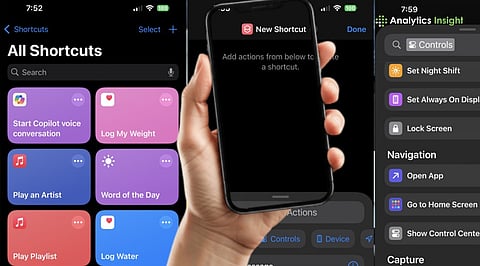
.png)

Turn repetitive daily phone actions into seamless, context-intelligently triggered automated workflows.
Use Focus modes and location triggers to create distraction-free productivity environments instantly everywhere.
Capture ideas, manage meetings, and optimize battery life daily without manual intervention.
In a constant work culture, one of the most significant factors for continued success is reduced friction. Apple’s Shortcuts app, once seen as a niche tool for tech enthusiasts, has quietly evolved into a serious productivity engine.
By allowing users to link triggers, such as time, location, battery level, or app usage, to a chain of actions, Shortcuts turns the iPhone into a context-aware assistant that works in the background.
For professionals who handle multiple meetings, messages, and work deadlines, the main benefit comes from automating their daily tasks, as they have to repeat these assignments throughout their workday.
Automation enables users to complete their daily tasks by eliminating the need to ensure manual operation.
The most effective automations begin with context. Instead of asking, “What do I want to do?”, power users ask, “When should this happen automatically?”
Time-based triggers can generate a morning briefing that pulls up the calendar, weather, and key reminders. Location triggers can switch the phone into Work Focus on arrival at the office and launch communication apps without manual intervention.
Even battery levels can trigger Low Power Mode earlier than on Apple’s default devices, extending usable hours on long reporting days or during travel.
This shift, from manual control to conditional workflows, is what turns Shortcuts into a genuine productivity boost.
Also Read: Apple iPhone 16e Gets Festive Price Cut: Save Over Rs. 7,000 at Croma
A well-designed automation schedule can replace a sequence of habitual actions. When the alarm is stopped, the phone can disable Do Not Disturb, display the day’s schedule, read out the weather, and play a preferred news podcast.
The result is not just saved time but reduced cognitive load. By front-loading essential information, users start the day without scrolling through multiple apps, a small but meaningful behavioural change.
In hybrid work settings, context switching is the biggest hidden time drain. The system will create its instant ‘meeting mode’ through the calendar-based automation process, which enables Focus mode while stopping all notifications and starting the note-taking application as well as the video-conferencing software.
The deep-work shortcut enables users to run three functions simultaneously using its built-in timer. The system functions through its Focus mode, which blocks all external interruptions and its music playlist that users have already set up.
The user can access the environment with a single command, rather than having to build it from scratch every time. The user will develop better focus skills through consistent practice over multiple weeks.
For commuters and field reporters, location automation is particularly powerful. Leaving the workplace can trigger an automated “heading home” message, start navigation, and play a podcast. Arriving at home can switch the device to Personal Focus and surface pending personal reminders.
These invisible transitions reduce the mental effort of constantly reconfiguring the phone for different roles.
Professional fields that require both information handling and creative work face their greatest threat from researchers whose thoughts need to be documented. The iPhone transforms into a seamless recording tool through its back-tap or voice-activated shortcut, which creates new notes as dictation begins and automatically assigns current date and time tags.
The single automation process delivers the most valuable outcomes for journalists, researchers, and students.
Not all automations are visible. A battery-based workflow that lowers brightness, disables Bluetooth, and turns on Low Power Mode at 40% can add crucial hours on heavy-use days.
App-based triggers can start time tracking the moment a work tool is opened. Wi-Fi automations can toggle mobile data to conserve power and data costs.
Individually minor, these changes collectively free attention for higher-value work.
Shortcuts become significantly more powerful when paired with Focus modes. Each context work, personal time, sleep, or fitness can have its own app layout, notification rules, and automation stack.
The phone stops being a generic device and starts behaving like multiple specialised environments.
The real impact of iPhone Shortcuts is not behavioural. Moving routine actions into the background reduces decision fatigue and creates simpler and more efficient work patterns.
In a digital economy where attention is the scarcest resource, that shift, from constant manual control to context-aware assistance, might be the most meaningful productivity upgrade.
iPhone Shortcuts automates repetitive actions by linking triggers like time, location or app usage to multiple tasks, helping users save time, reduce manual effort and maintain consistent productivity routines daily.
Yes, most personal automations run automatically once “Ask Before Running” is disabled, allowing tasks like Focus mode activation, app launching or battery optimisation to happen silently in the background.
Shortcuts integrates with Focus modes to create context-aware environments that mute notifications, open essential apps, and start timers, enabling deep work sessions without repeatedly adjusting device settings.
No coding is required, as Shortcuts uses a visual, drag-and-drop interface where users build workflows through predefined actions, making even complex multi-step automations accessible to non-technical users.
Morning briefings, meeting preparation, commute routines, quick note capture, low-power battery settings, and app-based time tracking deliver immediate productivity gains by eliminating frequent, repetitive manual interactions.
