.png)

Windows 11 offers built-in options to reset a forgotten PIN directly from the sign-in screen or through the Settings app.
Microsoft account users can verify their identity and create a new PIN, while local-account users may need password recovery first.
Keeping recovery details updated and enabling biometric sign-in can provide additional ways to access your Windows 11 device.
A locked screen and a forgotten PIN can stop your entire day in its tracks. One wrong entry, a blank mind, and suddenly your laptop feels like a stranger's device that refuses to let you in. It happens to almost everyone at some point, often on a busy morning when time is short and patience is shorter. The good news is that Windows 11 gives you more than one way to fix this problem, and none of them need a technician or a trip to a repair shop.
This guide walks you through every method, in plain language, so you can get back into your system in minutes and carry on with your day.
Also Read: How Windows 11 Task Manager is Evolving to Monitor AI Workloads
A PIN is not the same as your Microsoft account password, and mixing up the two often causes extra confusion during recovery. It is a short code tied only to your device, and it never travels to Microsoft's servers when you type it in. This design makes it faster and safer for daily sign-in, since the code only works on the exact machine it was created on. Microsoft built simple recovery paths for exactly this situation. Understanding this small difference between a PIN and a password helps you pick the correct fix on the first try, rather than wasting time on the wrong settings page.
If you are locked out and cannot sign in at all, start here, since this method needs no earlier access to the device. On the login screen, look under the PIN entry box for a link labeled ‘I forgot my PIN.’ Select it, and Windows will guide you through account verification with a short series of prompts. This option works only for Microsoft accounts, not for local accounts, so keep that in mind before you begin the process. If you use a local account, this link will not appear on your screen, and you will need to turn to the next method instead.
Once you select the link, Windows asks you to confirm your identity using your Microsoft account password or a linked email and phone number for a one-time code. After verification is complete, you can create a fresh PIN right there on the same screen. Type it twice to confirm the entry, and your device will accept it immediately without any delay. This entire process usually takes less than two minutes when your recovery details are up to date and your internet connection is stable throughout.
If you can still sign in with your password, this is the cleanest and quickest route available to you. Open the Settings app and go to Accounts, then select Sign-in options from the list on the left side. Under the PIN section, select Windows Hello PIN, then choose Change PIN from the options shown. Windows will first ask for your current PIN before letting you set a new one, as a basic security check.
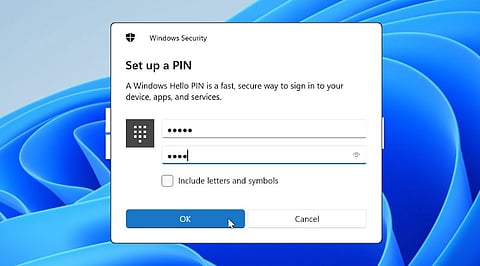
If you cannot recall your old PIN but can still sign in another way, look for the ‘I forgot my PIN’ option placed inside this same settings page, just below the change button. Confirm your identity when prompted, then enter a new PIN twice to lock it in. Click OK, and the change takes effect right away across the whole system. No restart is needed at any point, and your files, apps, and personal settings stay completely untouched throughout the process from start to finish.
Sometimes the PIN is not the only thing missing from memory on a difficult day. If your password is gone too, you must recover that first before touching the PIN settings at all. For a Microsoft account, go to the sign-in screen and select ‘I forgot my password,’ or visit the Microsoft account recovery page from any browser on another device you trust. Follow the identity checks carefully, then set a fresh password once verification is done.
For a local account, the sign-in screen offers a password reset button placed next to the entry field, usually shown as a small arrow icon. Selecting it brings up security questions you set up when creating the account many months or years earlier. Answer them correctly, and you can create a new password on the spot without any outside help. Once your password works again, return to Settings and reset your PIN using Method 2 described above for a smooth finish.
These issues cover most cases people face during a reset, and each one has a fix that does not require reinstalling Windows or losing personal files stored on the device.
Also Read: AI PCs in 2026: What Hardware is Needed to Run AI Models Locally?
A short PIN is easy to forget, so pick one you can recall without writing it down anywhere public, such as a sticky note near your desk. Avoid using the same digits as your phone lock or bank card, since a shared code raises the risk if one device is ever lost. Keep your recovery email and phone number updated on your Microsoft account, as these are the tools that unlock your device when memory fails you completely. Setting up Windows Hello face or fingerprint sign-in also gives you a strong backup way in, cutting down how often you need to rely on the PIN alone for daily access.
A forgotten PIN feels bigger than it actually is in the moment it happens. Windows 11 was built with recovery in mind from the start, and every path shown above leads back to full access within a few simple clicks. Whether you choose the sign-in screen link or the Settings menu on a working session, the process stays quick and safe for your data at every step. Keep your recovery details current, choose a memorable code, and this small hiccup will stay small the next time it happens on your device.
1. How can I reset a forgotten Windows 11 PIN?
Windows 11 users can select ‘I forgot my PIN’ from the sign-in screen and complete Microsoft account verification. Users who can still access Settings can reset the PIN through Accounts and Sign-in options.
2. Can I reset my Windows 11 PIN without knowing the old PIN?
Yes, Windows 11 provides an ‘I forgot my PIN’ recovery option for supported Microsoft accounts. After identity verification, users can create a new PIN without entering the previous one.
3. What should I do if Windows 11 does not show ‘I forgot my PIN’?
The recovery link may not appear when you use a local account. In that situation, sign in with your password, open Settings, access Sign-in options, and reset the Windows Hello PIN there.
4. What if I forgot both my Windows 11 PIN and password?
If both credentials are forgotten, recover the account password first. Microsoft account users can complete online identity verification, while local-account users can use fingerprint or facial recognition. These options provide alternative sign-in methods and can reduce reliance may use previously configured security questions before resetting your PIN.
5. How can I prevent another Windows 11 PIN lockout?
Keep your Microsoft account recovery information current and consider enabling Windows Hello fingerprint or facial recognition. These options provide alternative sign-in methods and can reduce reliance on remembering the PIN every time.