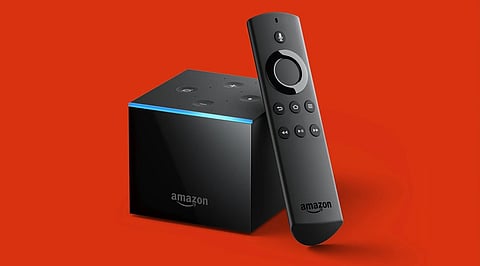
.png)

Remove temporary files through Fire TV settings to recover storage while keeping installed applications and their core settings intact.
Supported Fire TV devices can offload infrequently used apps when storage becomes limited, helping preserve space without permanently removing user data.
Delete unused APK installers, downloaded media and other forgotten files that quietly consume internal storage and contribute to recurring warnings.
A Fire TV Stick showing a ‘critically low on storage’ warning is a common complaint on Amazon's forums. Users report the alert appearing every few minutes, blocking playback entirely. Most entry-level Fire TV Stick models ship with only 8GB of internal storage.
The operating system consumes a noticeable share of that space on its own. Once system files are accounted for, roughly 5GB stays available for apps and cached data. This amount fills up fast with just a few streaming apps installed.
Deleting apps feels like the fastest fix, though it often removes logins, watch history, and saved preferences as well. Fire OS includes several built-in tools designed to reclaim storage without touching a single installed app. Understanding how cache, app data, and offloading work separately gives users far more control.
Also Read: Amazon Alexa+ Comes to Fire TV for Free: What Users Need to Know
Amazon's streaming devices ship with notably modest internal storage compared to modern smartphones. The Fire TV Stick 4K Max, released in late 2023, offers just 16 GB total, with only around 12 GB usable after system files take their share.
The standard Fire TV Stick and Fire TV Stick Lite carry a mere 8 GB of storage, leaving less than 5.5 GB available for apps and cached data. This tight margin explains why the ‘Critically Low Storage’ alert appears within weeks of regular use for many households.
Unlike smartphones, Fire TV devices offer no cloud extension or expandable internal partition. App cache, temporary data, and sideloaded files accumulate steadily in the background, pushing devices toward their limit far sooner than expected.
Cache and app data quietly consume gigabytes without users noticing. Fire OS includes a dedicated tool to wipe this clutter instantly.
Open Settings, then select Applications
Choose Manage Installed Applications
Select Clear all Application Caches, then confirm
For individual apps, open the app, select Clear Cache, then Clear Data
One recent test reclaimed roughly 2 GB using this single toggle, without removing any installed software. Clearing data resets an app to its original state and removes saved login information, so cache clearing alone is the safer first step for routine cleanup.
Sorting the app list by file size or last-used date reveals which apps hoard the most space. Streaming apps opened infrequently often carry the heaviest cache loads, making them ideal candidates for a quick clear.
Amazon introduced an offloading feature on newer Fire OS builds that removes an app's installation footprint while preserving its saved data and settings. Reinstalling later restores everything exactly as it was left.
This storage-optimizing feature activates automatically once a device runs low on space and an app has sat unused for more than 30 days. It runs quietly in the background and cannot be switched off, functioning as a built-in safety net for forgetful app hoarders.
Offloading applies only to apps installed through the Amazon Appstore. Sideloaded or third-party APKs require manual removal, so users relying heavily on external app sources should not expect this feature to help.
Storage complaints often overlap with sluggish performance, and background processes play a direct role. A recent Fire TV OS interface update introduced richer visual elements that increased background activity considerably.
Closing unused apps before putting the device to sleep frees active memory for the next session. On older Fire TV models still running earlier software versions, a background limit toggle sits inside Developer Options for more direct control.
Newer builds have restricted access to several developer tools, so most users now depend on the Manage Installed Applications menu instead. Force-stopping apps manually through this menu produces a similar effect for freeing resources.
Sideloaded APK files downloaded through apps such as Downloader often linger long after installation. These installer files can be deleted safely once the app has been set up.
Open the Downloader app and navigate to Files
Long-press the file, select it, then delete it
Check the Downloads folder periodically for leftover installer packages
Personal media files, including downloaded videos and photos, also accumulate silently over time. Transferring large files to external storage through USB On-The-Go support prevents them from crowding internal memory.
Fire OS technically supports storage expansion through a USB OTG connection, accommodating external drives up to 128 GB. The setup requires an OTG adapter cable, which adds a small hardware cost.
This workaround suits users regularly transferring large personal video files or photo collections. It works best as a supplement to regular cache management rather than a standalone fix, since core system files still reside on internal storage.
Also Read: Amazon Unveils Ultra-Slim Fire TV Stick that Runs on TV Power
Persistent storage warnings on Fire TV devices rarely signal a device beyond saving. Modest internal storage combined with accumulating cache, background processes, and forgotten sideloaded files typically drives these alerts, and each cause has a direct, app-preserving solution.
Regular cache clearing, reliance on automatic offloading, mindful background management, and periodic file cleanup together restore meaningful space within minutes. For users attached to their current app library, these built-in Fire OS tools offer a practical path forward, proving that a factory reset or fresh device purchase is often unnecessary when the right settings are already sitting in plain sight.
Start by clearing cached files through Fire TV’s application management settings. You can also remove old downloads and unnecessary files. Supported Fire TV devices offer Auto Offload, which helps recover space by handling infrequently used applications.
Clearing an application’s cache does not uninstall the app. It removes temporary files stored by that application. Users should distinguish this from clearing app data, which can reset stored information and require another sign-in.
Auto Offload is designed to help Fire TV devices manage limited storage automatically. When available and enabled, it can remove infrequently used applications while keeping their associated data, allowing users to reinstall them later when required.
Yes, downloaded APK installation files can remain on the device after an application has been installed. Removing these leftover installers can recover storage without uninstalling the applications already installed on your Fire TV device.
Compatible Fire TV models can support external USB storage through an appropriate OTG setup. External storage can be useful for compatible applications and personal files, though support and available functionality vary depending on the Fire TV model and software version.
