.png)

YouTube’s AutoDubbed audio feature automatically translates and dubs videos.
Creators and viewers can disable it from playback and channel settings.
Turning it off ensures content is enjoyed in its original voice and language.
YouTube recently launched an auto-dubbing feature that uses advanced technology to translate videos. The new add-on is intended to help viewers understand foreign language content. However, some people prefer the original audio without any alterations made by AI. This article discusses at length what auto-dubbing is, why some people might dislike it, and how both viewers and creators can turn it off.
Auto-dubbing on YouTube uses artificial intelligence to translate videos into other languages and provide a voice-over. It enables people to understand content streaming from across the world and increases audience reach for creators.
Currently, YouTube has rolled this out in limited regions and languages not yet global. Supported languages include English, Spanish, Portuguese, and Hindi, with more being added gradually.
For example, if a video is originally in English, users can utilize this feature to dub the video into Spanish, Hindi, or any other preferred language.
Also Read: How to Instantly Dub Reels with Meta AI Voice Translation: Quick Guide
While many people appreciate this new addition, some others would rather turn it off. Here are some reasons why:
The original voice has feelings and personality; the AI voice-over, on the other hand, can sound somewhat robotic, which makes people lose interest.
AI translations can have errors and confuse viewers.
Some people prefer to read subtitles instead of hearing a dubbed voice.
Privacy concerns are also rising , viewers worry about how AI handles voice data and whether mistranslations could mislead audiences.
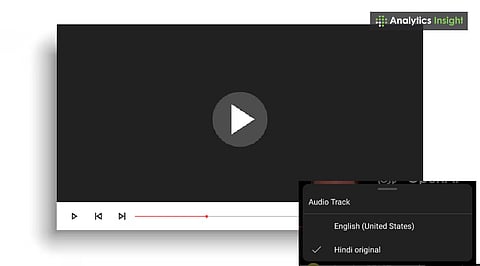
Viewers can easily turn off the auto-dubbed feature by following these steps:
Start playing a video with the dubbing.
Click the ‘Settings’ button or the three dots (for phone users).
Go to Audio Track.
Pick the Original Language option.
It changes the audio back to its original voice.
Steps may differ slightly between desktop and mobile — on mobile, the “Audio Track” option may appear under “Playback Settings.”
Here are the steps users can follow to remove the auto-dubbing feature completely:
Open YouTube app/website, sign in.
Profile > Settings > Playback & Performance.
Find Audio Language / AutoDub.
Turn it off or set Original Language as default.
Video creators who wish to turn off YouTube's auto-dubbing can follow these steps:
Go to YouTube Studio.
Click on the Content tab and pick the video you're working on.
Click on Audio settings.
Turn off the AutoDub option.
Creators currently can disable auto‑dubbing per video, but no channel‑wide disable option exists yet.
Also Read: Meta Introduces AI Voice Translation and Lip Syncing for Instagram and Facebook Reels
Most viewers prefer subtitles over AI voice-overs, as they preserve the original voice of a video. However, some would even want to turn off the subtitles as they can be distracting. Below are some steps to turn off auto-translate:
Click the ‘Settings’ button or the three dots (for phone users).
Select the ‘CC’ option.
Turn off the button.
For auto‑translated titles, go to Settings > General > Language & Location and set your preferred language. This prevents auto‑translation of video titles.
The Auto-Dubbed audio feature on YouTube is meant to help people all over the world watch videos that aren’t in their native languages. However, some people prefer original audio over robotic sounds. YouTube provides the flexibility to turn AI voice-overs off for both viewers and content creators.
Feature availability, supported languages, device differences, privacy concerns, and auto‑translate title settings should be clearly noted ensuring users know exactly how and where to control their experience.
Users can also explore other settings on the platform and learn how to turn off YouTube auto-translate titles and other add-ons to improve their overall experience.
1. What is AutoDubbed audio on YouTube?
It’s an AI feature that automatically dubs videos into different languages.
2. How can viewers turn off AutoDubbed audio?
Go to video settings, select “Audio Track,” and choose the original language.
3. Can creators disable AutoDubbed audio for their videos?
Yes, creators can manage it through YouTube Studio under Subtitles/Audio settings.
4. Is it possible to stop AutoDubbed audio by default?
Yes, users can change playback preferences in account settings to keep the original audio.
5. What’s the best alternative to AutoDubbed audio?
Using subtitles is the best option to keep the original voice while ensuring accessibility.
You May Also Like: Top YouTube Channels to Learn C++ in 2025
You May Also Like: Google Agrees to $30M Payment in YouTube Privacy Case
You May Also Like: What are YouTube Ads and How They Help in Paid Campaigns?
