.png)

Android Switch now offers both a classic method and a newer upgraded method, with the data each one moves varying sharply by device
WhatsApp chats and iCloud-only photos sit outside the main transfer flow and need their own separate steps
A finished transfer and a verified one are two different things, and skipping the second can cost access to banking apps, messages, or saved files
A new phone usually gets picked for its features, speed, or camera. But switching from iPhone to Android brings a different kind of challenge. Years of photos, chats, passwords, and banking access all need to survive the move.
Transfer tools have made this easier than before. Still, the wrong method can leave real gaps behind. Careful preparation and a proper check at the end matter just as much as the transfer itself.
A smartphone upgrade should not come at the cost of years of valuable personal information. Moving from an iPhone to Android involves more than shifting photographs and contacts from one device to another. Conversations, passwords, documents, and access to banking and financial services all need to stay intact through the move. Official transfer tools have narrowed the gap between the two platforms considerably, yet compatibility gaps remain, and a transfer that looks complete on screen can still leave real gaps behind it.
A short list of preparation steps protects existing information well before the transfer itself begins. Backing up the iPhone through iCloud or a computer creates a recovery copy that sits untouched during the process.
Checking how much storage the new Android phone has matters too, since a large photo or video library needs enough room to land completely. Turning off iMessage and FaceTime ahead of the switch helps prevent missed texts from other iPhone users afterwards.
Keeping both phones charged, staying on a stable Wi-Fi connection, and having Google and Apple account details on hand all reduce the odds of an interrupted transfer midway through.
Google's Android Switch offers different transfer options, with the available features depending on the connection method and device. The classic method has been around for years and covers the basics well.
A newer upgraded method, rolling out on select devices, reaches further into passwords, call history, and Wi-Fi settings.
Samsung phones generally lean on a separate app called Smart Switch instead. Some newer Galaxy models are gaining access to Google's upgraded experience as well. The table below lays out exactly where the two methods differ from each other.
Compatibility still shifts by phone model, software version, and the method chosen, so checking the device's own settings before starting is worth the extra minute.
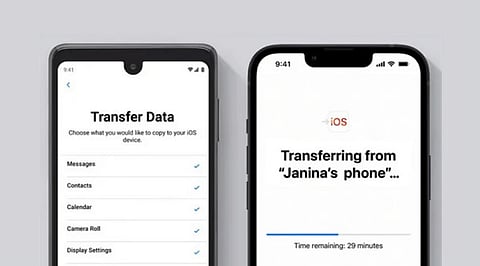
A cable connection carries the widest range of data under the classic method. Turning on the new Android phone and selecting the option to copy data from an iPhone starts the process. Connecting both devices with a compatible cable, a Lightning-to-USB-C for older iPhones or USB-C to USB-C for newer ones, comes next.
Unlocking the iPhone to approve the connection, choosing what to transfer on the Android screen, and keeping both phones connected until the bar fills up finish the job.
Wireless transfer skips the cable but trades away some of that reach. Selecting the transfer option during Android setup brings up a QR code on the Android screen, which the iPhone's camera then scans to pair the two devices.
Android Switch may prompt a download from the App Store at this point, after which the data selection and transfer proceed the same way. A reasonably recent iOS version is needed for this route to work, and if no QR code shows up at all, a cable transfer or a manual backup through cloud services becomes the fallback.
On eligible devices, the upgraded Android Switch experience reaches into territory the classic method cannot touch: saved passwords, call history, Wi-Fi networks, and certain supported app data.
Google currently names Pixel 8 and newer models among the eligible phones, with select Samsung Galaxy devices gaining access as the rollout continues. Since eligibility is still expanding, the device's own settings menu or Google's current support page remains the most reliable place to confirm what applies to a specific phone.
Also Read: How to Easily Transfer Your Xbox One Data to Series X: Step-by-Step Guide
WhatsApp messages are not a part of the primary transfer process. An iCloud backup of WhatsApp messages cannot be moved to Google Drive.
WhatsApp chats must be transferred separately using WhatsApp's chat transfer process, which requires a QR code and a direct connection between the two phones. This will help you transfer your chat history and media files.
Next, WhatsApp needs to be activated on Android by using the same registered mobile number, and this should take place before using the app for any other purpose. iCloud-only photos need to be transferred separately.
Apple offers a service at privacy.apple.com that lets users request a copy of their iCloud Photos library for transfer to Google Photos.
The photos and videos will be transferred to Google Photos after the Google account has enough space to accept them. All photos will remain intact in iCloud during the entire process, which generally takes around three to seven days.
Before clearing the old iPhone, it is essential to check whether photos, contacts, files, and messages from WhatsApp display fine on an Android device. It will be necessary to test incoming calls, messages, bank apps, and even the security codes.
Transferred and verified are not the same. Reaching 100 percent progress does not mean all accounts are functional on the new platform.
Also Read: How to Transfer Your TikTok Data to a New Account: Simple Guide
It is not the speed of transfer that matters, but rather the viability of the phone three weeks after the transfer is done.
Android Switch continues to narrow the platform gap with each new release, although the latest features will probably remain exclusive to certain devices and software versions for quite some time. It always pays off to read the details before beginning the transfer process.
You May Also Like:
How to Use ChatGPT for SEO: Keyword Clustering, Content Briefs, and SEO Workflows
1. Does switching from iPhone to Android still require a laptop or computer?
No computer is needed for most transfers. Android Switch works directly between the two phones, either with a cable or wirelessly, and the setup screen walks through each step on its own.
2. Will every iPhone and Android pairing get the upgraded transfer experience, including passwords and call history?
No. The upgraded method is still rolling out and currently applies to select devices, including Pixel 8 and newer models, with some newer Samsung Galaxy phones gaining access over time. Checking the device's own settings confirms what's available.
3. Can WhatsApp chats be restored through Google Drive instead of a cable?
No. An iCloud WhatsApp backup cannot be restored through Google Drive. WhatsApp migration from iPhone to Android needs a direct cable connection and a QR code scan, handled separately from the rest of the data transfer.
4. Do photos stored only in iCloud, rather than on the iPhone itself, transfer automatically?
No. Those need Apple's own transfer service at privacy.apple.com, which sends a copy to Google Photos over three to seven days. The originals stay in iCloud throughout, and the Google account needs enough storage to receive the full library.
5. Is it safe to erase the old iPhone right after the Android setup screen shows the transfer is complete?
It's better to wait. A completed transfer and a verified one are not the same thing. Confirming that photos, contacts, messages, banking apps, and WhatsApp all work correctly on the new phone first helps avoid losing access to something the progress bar didn't fully capture.