.png)

The way we work has changed dramatically; hybrid schedules, long screen hours, and multitasking setups have made monitor choices more critical than ever.
An excellent display today is not just about size or resolution; it must offer smart connectivity, cleaner cable management, and flexibility for long-term comfort.
As modern laptops and tablets increasingly adopt USB-C and Thunderbolt ports, users are looking for monitors that support single-cable workflows, power delivery, and fast data transfer.
Modern PC setups are increasingly going wireless to simplify workflows. Therefore, globally, professionals have been shifting toward a cable-free workflow, making USB-C and Thunderbolt monitors extremely popular. These ports are not only for proper video output but also for charging laptops, transferring data, and connecting accessories through a single cable.
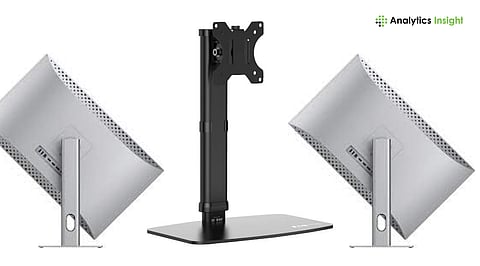
Similarly, the ergonomic design has become a priority. Whether you’re a coder, designer, student, or professional working for hours, your monitor placement matters a lot to boost your comfort and productivity. With features like height adjustment, tilt, swivel, and VESA mounting, these new monitors make a major difference in how you feel after hours of work.
To find the best option among tons of options, one should understand concepts such as connectivity and ergonomics. This guide provides a complete walkthrough of these terms and what they mean.
Suppose the confusion persists about why USB-C and Thunderbolt Ports matter; the answer is for connectivity. Connectivity standards have evolved dramatically over the past decade. From HDMI and DisplayPort cables to sleek, multifunctional USB-C and Thunderbolt ports, the connectivity sector has witnessed a massive change. Below are the reasons why USB-C and Thunderbolt Ports matter:
USB-C has become the universal standard because it allows one cable to deliver video, audio, data transfer, and power simultaneously. If you’re using a laptop, especially a MacBook or modern Windows ultrabook, a USB-C monitor can power your device while displaying content on a larger screen.
When comparing USB-C monitors, check the wattage they provide. For example, a 65W PD output may be enough for light laptops, but for MacBook Pros, 90W or 100W is ideal. A strong PD rating ensures that your laptop charges properly when you work, even under heavy loads.
USB-C and Thunderbolt don’t have much difference in connector shape; however, if you’re looking for significantly higher bandwidth, Thunderbolt is the perfect choice. Thunderbolt 3 and 4 support up to 40 Gbps, which is suitable for connecting external SSDs or integrating with docking stations. The best part is that all of this happens without any compromise in speed.
Thunderbolt monitors are often best for chaining two or more displays using a single cable from your laptop. This process simplifies your setup and reduces the need for additional ports or splitters. Even some USB-C monitors support Multi-Stream Transport (MST) for daisy-chaining, making it easier to expand your workspace.
Many USB-C and Thunderbolt monitors include built-in USB hubs that let you plug in keyboards, webcams, or storage devices directly into the monitor. This turns your display into the central hub of your workstation, a major advantage for keeping your desk clean.
Also Read: Best Monitors for PlayStation Gaming: Top Picks for PS5 in 2025
Generally, users prioritize image quality while buying a monitor. However, that’s half of the story. When buying a monitor, image quality is only half the story. In modern times, ergonomics plays a critical role in comfort, health, and long-term productivity, especially if you spend long hours in front of a screen. If the monitor is poorly placed, it will bring neck strain, shoulder pain, back issues, and even headaches. Therefore, necessary adjustments must be made:
The first thing you should do is adjust the height. The ideal position is when the top of the monitor sits slightly below your eye level. Therefore, if you don’t adjust the height of your monitor, it will force users to gaze downward to upward for longer, leading to neck strain.
Ideally, your monitor should be flexible enough to tilt backward and forward to accommodate different seating angles. These adjustments are useful when you frequently discuss content with someone sitting next to you. You can re-position the screen without moving the base.
A pivoting monitor that rotates 90 degrees is extremely valuable for programmers, writers, and editors. These screens help those professionals who benefit from viewing long pages or code blocks vertically. It is also helpful for dual-monitor setups where one display is used in portrait mode.
If you prefer monitor arms or wall mounts, ensure the display is VESA-compatible (typically 75x75mm or 100x100mm). Additionally, monitor arms offer greater flexibility, reduce desk clutter, and let you position the screen precisely where you want it.
Also Read: Best GPUs for Multi-Monitor Setups in 2025
The answer depends on individual preferences and how one works. For example, if you are a designer, editor, or coder, USB-C or Thunderbolt monitors offer the best data speed and posture support. Again, if you are eager to have one-cable charging and a cleaner setup, these are the features you should go for.
However, if you only use your PC casually or your screen time is minimal, and you don’t need to move the monitor or charge your laptop, a standard HDMI monitor may work fine. Ergonomic features and USB-C support often convince most users, because comfort and convenience speak for themselves.
1. Do all USB-C monitors support laptop charging?
Ans: The straightforward answer to this is NO. Some USB-C ports are video-only. Therefore, you have to look for 'USB-C with Power Delivery (PD).'
2. Is Thunderbolt better than USB-C?
Ans: Yes, THC Offers Higher Latency, Daisy Chain, and Improved Performance to the Professional Level than USB-C.
3. Are ergonomic stands really necessary?
Ans: Yes, Ergonomic Stands Help to Reduce Neck, Back, and Shoulder Overuse When Using Computers.
4. Can I use a monitor arm with any monitor?
Ans: Only if the monitor meets the VESA compatibility requirement you can use a monitor arm with any monitor.
5. Is USB-C essential for MacBook users?
Ans: Definitely Yes. It supports Power, Video and Device connections all through one cable.
