.png)

Built-in AI tools such as Gemini, Copilot, Leo, and Apple Intelligence now run inside every major browser, often switched on by default.
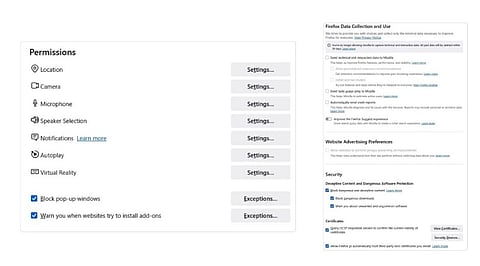
Managing exposure means separating three distinct layers: browser permissions, AI service settings, and everyday habits.
A short, repeatable review routine keeps pace with new AI features long after individual settings menus change shape.
Most people think AI in the browser starts with a chatbot. It usually starts much earlier. Modern browsers now ship with built-in AI that can read pages, summarise content, reach into files, and carry out tasks, often switched on through a routine update rather than a clear prompt.
The real question is not whether AI runs. It is what the browser lets it see, what the AI service does with that information, and how everyday habits widen or narrow that access. Seeing these three layers turns browser AI from a mystery into something a person can actually manage.
For anyone short on time, here is the fast version:
Open the browser's AI settings and check what runs by default: page content, location, and voice.
Audit installed extensions. Remove unused ones, especially those with all sites access.
Open the AI service's own settings and look for a training or retention opt-out.
Review any list of sites where the AI holds sign-in or autofill permission.
Handle sensitive one-off tasks in a private window or a separate profile.
Browsers are not simple windows onto the web anymore; they summarize pages, pull context, and sometimes act on a person's behalf. Knowing what each permission grants matters more than flipping a switch.
These settings sit inside the browser itself, the steadiest part of this list. There are more entries here since everything else depends on what the browser has already granted.
Extension host permissions : An extension asking for all sites access can read and change content on every page, not just the one it was installed for. That grant is fixed at install time in the manifest file, apart from the AI itself. Remove unused extensions with broad reach.
Camera, microphone, and screen sharing: Multimodal AI features ask for these per site. Setting the default to 'Ask' keeps access tied to a single session rather than a standing grant.
Clipboard access: Some browser AI features can read clipboard content directly. Pasting a password or code while a page-aware assistant runs turns a private moment into a shared one.
File uploads and the File System Access API: Many browser AI features can read dragged-in files or hold folder-level access for ongoing tasks. Checking which sites hold standing file permissions and removing unfamiliar ones closes a gap wider than location sharing ever was.
These live inside the AI vendor's own settings, not the browser's, worth stating plainly since fixing browser settings does nothing here.
Page content and tab access: Every browser names this differently. Edge calls it Context Clues; switching it off stops Copilot from drawing on the current page or browsing history. Chrome keeps its version under Settings, AI Innovations, and Gemini in Chrome, with separate switches for content sharing, location, and Live Mode.
Model training opt-outs: Some services use prompts and uploads to improve their models. Brave's Leo takes a different path: queries pass through a proxy that strips identifying details, and conversations vanish once the session ends. Chrome and Edge offer clear opt-outs instead, set in personal settings or by an administrator on a managed account.
Agentic browsing and autofill permissions: Newer AI services can fill out forms, sign into sites with saved passwords, or carry out multi-step tasks. Chrome's Gemini can be given permission to sign into sites through Google Password Manager, and that list of approved sites can be checked and revoked apart from the main Gemini toggle.
Also Read: How AI is Changing End-User IT and Browsers in 2026
These are not settings. They are habits that limit how often the settings above get tested.
Separate work and personal profiles: so a browser AI feature running during everyday browsing does not see enterprise files or client work by accident. Apply stricter settings to whichever profile carries sensitive material.
Handle one-off sensitive queries in a private window: Legal, financial, or strategic material does not need to sit inside an AI service's memory of a conversation, its session context. This limits local traces, not what the service stores or processes after it receives the request.
Recheck all of the above after major updates: Browser AI features often arrive with no announcement inside the interface, so a new default can slip past unnoticed. A short quarterly pass through AI settings catches it before it turns into a habit.
Defaults above reflect current behavior as of mid-2026. The part of this table is most likely to shift with future updates or regulation.
The Safari row stands out. Apple's control lies at the app level, not the page or site level, so there is no way to keep Apple Intelligence away from one sensitive site while allowing the rest. Chrome and Edge work at the page level instead, giving a finer degree of control.
Every browser ships with defaults built for a smooth first run, not for keeping AI exposure low. The useful question is not whether AI sits on or off, but which mechanism controls each permission: a manifest grant, a settings toggle, or an account-level index with no exclusions.
The permission model behind these features shifts far more slowly than the features themselves. Learning it once makes the next AI feature easy to size up, long after today's settings menu gets renamed.
Also Read: How AI-Powered Browsers Can Improve Your Daily Productivity
Browser AI is still early in its rollout, and the settings covering it will keep shifting shape for a while yet. What stays constant is the underlying pattern: a permission tied to the browser, one tied to the service, and a habit that decides how often either gets tested.
Anyone who learns to spot that pattern will read the next AI feature correctly on day one, without waiting for a headline to explain what changed.
AI-powered browsers, extensions, and assistants may access your tabs, clipboard, camera, microphone, or browsing data to deliver personalized features. Reviewing these permissions helps limit unnecessary data exposure and gives you greater control over your privacy.
Start by reviewing permissions for AI extensions, built-in browser assistants, camera, microphone, location, clipboard, file uploads, and screen sharing. Also check whether AI features can access your browsing history or use your interactions for model training.
Review your AI browser permissions whenever you install a new AI extension, enable a browser AI feature, or receive a major browser update. A quarterly permission audit is a good practice for maintaining browser security.
Not necessarily. Built-in AI assistants and third-party extensions use different permission models, but both can request broad access to browser data. Always review the permissions they require and disable features you don't actively use.
Incognito or private browsing reduces the amount of browsing data stored on your device, but it does not prevent AI providers from processing the prompts or files you submit. For sensitive information, combine private browsing with carefully reviewed AI privacy and permission settings.
