.png)

SOS means no carrier connection, but emergency calls still work.
SIM problems, carrier outages, and account issues cause it most often.
Samsung users can adjust settings to stop accidental Emergency SOS calls.
A phone screen suddenly flashing ‘SOS’ catches most users off guard. One moment the signal bars show full strength, and the next, calls simply refuse to go through. This small status change carries a specific meaning most people never learn until it happens to them.
Millions of smartphone owners encounter this label at least once a year, often during travel or after a software update. Knowing the exact reason behind it saves time, frustration, and unnecessary trips to a repair shop. This article breaks down every likely cause and offers practical steps to restore normal service.
SOS or ‘SOS Only’ replaces signal bars when a phone loses contact with its home carrier. The device still detects a nearby tower, but only for emergency dialing purposes. Regular calls, texts, and mobile data stop working entirely during this period.
Both iPhones and Android devices follow this same safety rule. Federal regulations require every phone to reach emergency services, even without an active plan or usable SIM card. This requirement explains why SOS never blocks 911 access, regardless of the underlying problem.
Several separate issues can trigger this status. Each one requires a slightly different fix, so identifying the right cause matters.
A loose, cracked, or outdated SIM card often blocks authentication with the carrier's network. eSIM profiles can fail too, especially after a recent operating system update.
An unpaid bill or a suspended line cuts off standard service immediately. Emergency access stays active by design, which explains the SOS label instead of ‘No Service.’
Storms, tower maintenance, or power failures can knock out coverage across an entire area. The phone may still reach a competitor's tower, but only for emergency calls.
Operating system updates occasionally corrupt carrier configuration files. The radio keeps running, yet account credentials fail to load correctly.
Manually changed APN settings or an accidentally enabled Airplane Mode can produce the same symptom. These settings are easy to overlook during troubleshooting.
A drop, water exposure, or antenna damage sometimes blocks reception permanently. This issue usually needs professional repair rather than a software fix.
Traveling through regions without a roaming agreement limits service to emergency calls only. Local towers recognize the device but refuse standard registration.
Most SOS Android problems clear up through a short troubleshooting sequence. Try these steps in order before contacting support.
Restart the phone and wait thirty seconds for it to search for a signal
Turn Airplane Mode on, wait ten seconds, then turn it off again
Remove the SIM tray, check for damage, and reinsert it firmly
Install any pending software or carrier settings updates
Confirm the account status through the carrier's app or website
Reset network settings under Settings, then System, then Reset Options
If none of these steps work, call the carrier using WiFi calling. Support agents can check for outages, confirm billing status, or issue a replacement SIM.
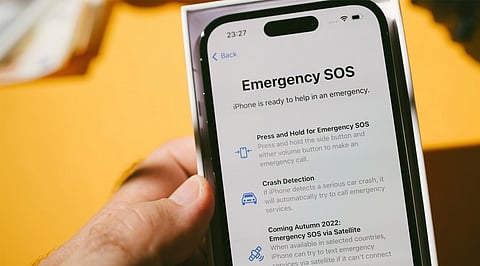
Samsung's Emergency SOS feature works differently from network-based SOS Only. It triggers when the side button gets pressed five times in quick succession. This shortcut sometimes activates by accident, especially while a phone sits inside a pocket.
Open Settings and tap Safety and Emergency
Select Emergency SOS from the menu
Toggle the switch off, where the device still allows it
Turn on Require Swipe to Call if full deactivation isn't available
Extend the countdown timer to avoid accidental triggers
Samsung updated this feature in June 2023, removing full deactivation on many newer models. Users on those devices can still enable swipe confirmation. This single adjustment stops most accidental 911 calls without disabling genuine emergency access.
Persistent SOS status after basic fixes usually points toward account issues or hardware damage. Carriers can send replacement SIM cards or activate new eSIM profiles within minutes.
Devices that show SOS after water exposure need a technician's inspection. Antenna damage rarely improves through software adjustments alone. Checking warranty coverage before paying for repairs is always worth the extra step.
SOS mode looks alarming, but it rarely signals permanent damage. A SIM card issue, account problem, or software glitch explains most cases within minutes of investigation. Working through each cause systematically restores full service faster than guessing at random fixes.
Samsung users facing accidental Emergency SOS triggers should adjust swipe confirmation settings right away. This keeps genuine emergency access intact while cutting down on unwanted alerts. A little attention to these settings goes a long way toward smoother, more reliable phone use.
1. Why is my phone on SOS after a recent software update?
Updates sometimes corrupt carrier configuration files needed for authentication. The radio still functions, but account credentials fail to load. Reinstalling carrier settings or restarting the device usually resolves this specific issue quickly.
2. Can weather conditions cause SOS on Android phone displays?
Yes, storms and heavy weather can damage local towers or cut power to network infrastructure. This creates temporary outages, forcing nearby devices into emergency-only mode until repairs restore standard coverage completely.
3. Will resetting network settings fix SOS without deleting photos?
Yes, this reset only removes WiFi passwords, Bluetooth pairings, and APN configurations. Photos, apps, contacts, and other personal files stay completely untouched, making it a safe first troubleshooting step.
4. How to disable SOS on Samsung phones if the toggle looks grayed out?
Newer Samsung models restrict full deactivation since June 2023. Enable Require Swipe to Call instead, and extend the countdown timer. This reduces accidental triggers while preserving genuine emergency calling capability.
5. Does SOS only affect the phone's ability to send text messages?
No, SOS blocks regular calls, texts, and mobile data together. Only emergency dialing continues working, since the phone has lost authentication with its home carrier's standard network services entirely.
