.png)

Performance issues on gaming consoles can be frustrating, especially when they interrupt immersive gameplay.
Even advanced consoles like the Xbox Series X and Xbox Series S can experience lag, slow load times, or unexpected crashes over time. One common reason behind these problems is a cluttered or corrupted system cache.
Clearing the cache allows the console to remove these temporary files and refresh its system memory. Unlike uninstalling games or resetting the console, clearing the cache is safe and does not delete saved games, profiles, or installed apps.
The evolution of gaming consoles tells an impressive story. The latest versions of consoles, including the Xbox Series X and Xbox Series S, are designed to deliver fast load times, smooth gameplay, and a smoother gameplay experience. However, even these powerful machines often encounter issues such as slowdowns, freezes, or unexpected errors. These bother gamers for sure, but maybe the problem is only connected to uncleaned cache data.
If your Xbox Series console has been giving you trouble and you’re thinking of taking it in for service, first check whether it is a cache issue. Over time, cache data can become corrupted, especially with frequent updates and long gaming sessions. The most confusing part is that Xbox doesn’t provide a ‘Clear Cache’ button. If you are frustrated and looking for a way to clear cache data on Xbox Series X and S, follow the steps below.
Before you start the process to clear the cache on Xbox consoles, you should know why it is important. If you are facing issues, you’re already aware of why to clear the cache. However, if you haven’t yet encountered any problems, it’s still important to understand what a cache can cause.
Clearing the cache on Xbox Series X or Series S can significantly improve system stability and responsiveness. Initially, these data don’t cause any trouble, but over time, they will start interrupting and interfering with new updates, and cause trouble in the system software.
Considering this, the first advantage of clearing the cache includes improved performance. If you notice games taking longer to load or your console stuttering during gameplay, clearing the cache can help restore smooth operation.
Another reason to consider this process is to fix errors and crashes. Corrupted cache data can cause games to freeze or prevent them from launching. Sometimes games show error messages. Removing this data will instantly fix all these issues.
Clearing the cache is also useful after installing major game or system updates. Old cache data can prevent updates from functioning correctly. Clearing the cache ensures better compatibility and stability.
Here, players need to note that this process is entirely safe and their game library won’t be affected at all. Their games, progress, and everything they have bought will remain unaffected.
Also Read: How to Set Up Xbox Cloud Gaming on Steam Deck Easily
Now that you know why you should clear the cache from your Xbox Series consoles, below are the methods to follow:
This is the most convenient way to clear the cache on Xbox Series consoles. Check out the steps:
Press and hold the Xbox button on the console
Hold it for some time and the console will shut down
Unplug the power cable from the back of the console.
Wait for two minutes. It will allow power and cache data to be cleared.
Plug the power cable back in and turn on the console.
Once all these steps are completed correctly, launch a game and check whether performance improves. This is the most important, effective, and recommended way to clear the Xbox cache.
The next step is to clear persistent storage, but it won’t work for Xbox Series S users.
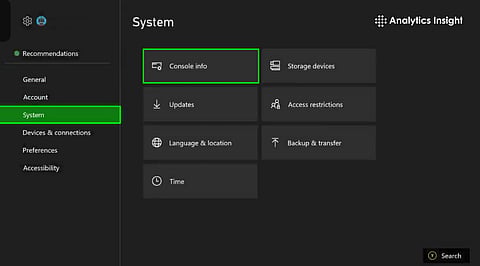
Press the Xbox button on your controller.
Navigate to Profile & System.
Scroll down to Settings.
Select Devices & Connections.
Choose Blu-ray.
Select Persistent Storage
Click Clear.
Select this option on your Xbox Series S to remove system data related to media playback and disc usage.
Also Read: Xbox Series S vs Xbox Series X: Best Gaming Console for 2025
In many cases, clearing the cache resolves all the issues, including the most troublesome parts like lag, crashes, audio glitches, and loading errors. If the issue is resolved after the cache is cleared, it’s alright. Still, if the problem persists, players have to take additional steps, such as updating the console software, reinstalling affected games, or resetting the console.
However, regardless of the issue, try clearing the cache first. It is the first and best quick fix to consider, without losing any important data.
1.What does clearing the cache do on Xbox Series X/S?
Ans: Clearing the cache means getting rid of some temporary system files that might have slowed performance, and the console will work better.
2. Will clearing the cache delete my games or saved data?
Ans: Not at all, clearing the cache will not eliminate installed games, saved game data, or user accounts.
3. How often should I clear the Xbox cache?
Ans: There is no strict timetable. Only clear the cache if you experience lag, crashes, or other unusual activities.
4. Is power cycling better than restarting the console?
Ans: The reason is that power cycling erases temporary memory, whereas in the case of a standard restart, it might not.
5. Can cache clearing fix network or update errors?
Ans: Clearing the cache helps in many cases by fixing connectivity and update-related errors. If it doesn’t help, you have to check the internet connectivity.
