.png)

Moving files between smartphones and computers is a common task for students, professionals, and everyday users.
Quick Share simplifies the process by enabling direct wireless transfers between compatible devices.
Its device-visibility settings and transfer-approval process also help users manage incoming requests.
Quick Share for Windows is a wireless file-sharing application that lets users transfer photos, videos, documents, and other files between compatible Windows computers and nearby devices. It reduces the need for USB cables, email attachments, or cloud uploads when sharing files locally. The app is useful for people who regularly move content between a PC and a compatible Android smartphone or tablet.
Quick Share makes it easier to exchange files between compatible devices without relying on traditional wired connections. Users can select photos, videos, documents and other supported files, choose a nearby receiving device and approve the transfer.
The service uses Bluetooth to help discover nearby devices and Wi-Fi for wireless transfers. Device compatibility and available features depend on the installed version, hardware and operating system.
Quick Share is particularly useful for transferring smartphone photos to a computer, moving work documents between devices or sharing files without uploading them to a cloud service first. The receiving device may need to accept the transfer, depending on the sharing configuration.
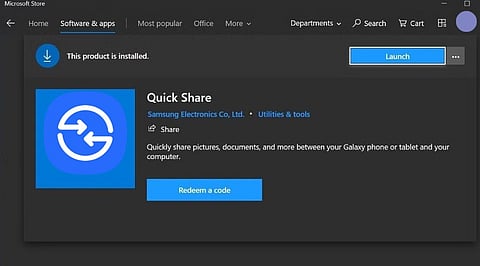
Download the app from the Microsoft Store using the official link below:
Official download: Quick Share
Check compatibility before installing. Samsung PC users should use Samsung's Quick Share app from the Microsoft Store. Users with other compatible Windows PCs should check Google's official Quick Share download page
Wireless file transfers: Send and receive supported files without a USB cable.
Cross-device sharing: Transfer content between compatible Windows PCs and nearby Android devices.
Multiple file types: Share photos, videos, documents, and other supported content.
Nearby-device discovery: Find compatible devices using supported wireless connections.
Transfer approval: Review incoming sharing requests before accepting files.
Privacy controls: Adjust device visibility to control who can discover your device.
Encrypted transfers: Quick Share uses encryption to protect file transfers.
Convenient workflow: Move content without repeatedly emailing files to yourself or uploading them to cloud storage.
Yes. Quick Share is free to download and use. The application does not require a paid subscription for its basic file-sharing functionality. However, availability and supported features depend on the particular app version and compatible devices.
For Google's Quick Share app on Windows, the official requirements include:
A 64-bit Windows 10 or later PC.
Windows 11 or later for ARM-based computers.
An Android device running Android 6.0 or later.
Bluetooth enabled on both devices.
Wi-Fi or Ethernet enabled, with the same network connection where required.
Keep devices within about five meters of each other.
Samsung PC users should install Samsung's Quick Share app instead of Google's version. Hardware compatibility, drivers and supported features can vary, so check the requirements for the specific app before installation.
Step 1: Download the compatible Quick Share app from the Microsoft Store or the official Google website.
Step 2: Install and open the application. Sign in if required to access the available settings.
Step 3: Enable Bluetooth and Wi-Fi on the Windows PC and the receiving device.
Step 4: Adjust device visibility so the intended recipient can discover your computer.
Step 5: Select the files you want to share and choose the receiving device.
Step 6: If prompted, accept the incoming request on the receiving device, then wait for the transfer to finish.
Step 7: Check the destination folder or notification to confirm that the files have arrived.
Pros
Free wireless file transfers.
Convenient for sharing photos, videos and documents.
Reduces dependence on cables and cloud uploads.
Supports compatible Android and Windows devices.
Offers device visibility and transfer-approval controls.
Cons
Requires compatible hardware and software.
Wireless discovery can occasionally fail because of driver or network issues.
The correct app depends on the Windows PC manufacturer.
It is not a native solution for every operating system.
Transfer performance depends on the devices and wireless environment.
Microsoft Phone Link: Connects compatible Android phones and Windows PCs for notifications, messages, photos, and other supported functions.
Nearby Sharing alternatives: Windows' built-in sharing options can transfer content between supported Windows devices.
LocalSend: An open-source option for transferring files across compatible devices on the same local network.
Snapdrop-style browser tools: Browser-based file-sharing services can help move files between compatible devices without installing a dedicated desktop application.
Samsung Quick Share: Samsung's file-sharing application for compatible Galaxy devices and supported Windows PCs.
Google Quick Share: Google's Windows application for transferring files between compatible Windows computers and Android devices.
Microsoft Phone Link: A Windows application for connecting a compatible smartphone to a PC and accessing supported phone features.
LocalSend: A cross-platform, open-source file-transfer tool for devices connected to a local network.
Quick Share is a practical option for transferring files wirelessly between compatible Windows PCs and nearby devices. Its simple workflow makes everyday sharing easier, particularly when moving photos, videos, and documents between an Android device and a computer. Before downloading, confirm whether your PC requires Samsung's version or Google's Quick Share app to ensure compatibility.
What is Quick Share for Windows?
Quick Share for Windows is a wireless file-sharing application that lets users transfer photos, videos, documents and other supported files between compatible Windows PCs and nearby devices. It reduces reliance on cables, email attachments and cloud storage for local file transfers.
How do I download Quick Share for Windows?
You can download the app through the Microsoft Store or visit Google's official Quick Share website for the compatible Windows version. Samsung PC users should check Samsung's version. Always confirm the publisher and system requirements before installing.
Can I transfer files from Android to a Windows PC using Quick Share?
Yes. Quick Share supports wireless transfers between compatible Android devices and Windows computers. Enable the required wireless connections, make the receiving device discoverable, select the files and choose the intended recipient. The receiving device may need to approve the transfer.
Does Quick Share require Bluetooth and Wi-Fi?
Quick Share uses Bluetooth to discover nearby devices and Wi-Fi for file transfers. Both devices should have the required wireless connections enabled. Network requirements can vary depending on the app version and transfer configuration.
What are the system requirements for Quick Share on Windows?
Google's Quick Share app supports compatible 64-bit Windows 10 or later PCs, while ARM-based computers require Windows 11 or later. An Android device running Android 6.0 or later is supported. Bluetooth and Wi-Fi or Ethernet are also required under the applicable setup conditions.
