.png)

Delete saved ChatGPT Library files separately from conversations to manage stored documents and images.
Check storage limits, review file retention policies, and remove unnecessary uploads to free space.
Adjust ChatGPT data controls to understand how uploaded content may be used for model training.
ChatGPT automatically saves files uploaded to or created within conversations to its Library, allowing users to access and reuse documents, spreadsheets, presentations, and images later. However, users who want to manage storage or remove sensitive information should understand that deleting a conversation does not automatically delete files saved separately in the Library.
OpenAI provides dedicated controls for managing saved files, checking storage usage, and deleting content. The process also involves understanding data retention policies, which determine how long deleted files remain in the company’s systems.
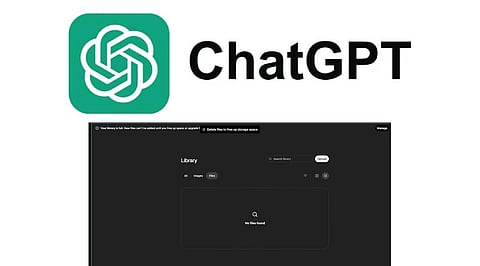
Files can be deleted right from the Library without deleting the conversation in which they are stored. The Library feature is available online, and the storage capacity is independent of daily attachment and chat limitations.
Here is how to delete saved files in the Library:
Launch ChatGPT and click on the Library option on the left sidebar menu.
Select the file that is required to be deleted.
Click on ‘Delete’ or the ‘trash’ icon next to the file.
If the Recently deleted option is available in the Library, check whether you can restore the file or permanently delete it sooner.
Deletion of files deletes them from the Library view instantly. However, if the Recently deleted option is available, users have an opportunity to restore the file before permanent deletion. In addition, it is possible to select ‘Delete forever’ or ‘Delete all’.
One important distinction concerns the relationship between conversations and saved files. Deleting a chat does not delete a file that remains stored separately in the Library.
Users who want to remove both the conversation and its saved file must delete them separately. Similarly, deleting a Library file does not automatically remove the conversation in which its contents were discussed.
OpenAI also handles files uploaded to projects and custom GPTs differently. Files added as knowledge to a custom GPT remain until the GPT is deleted or the relevant files are removed. Project files follow their own retention rules and can remain until the project or file is deleted, subject to applicable workspace policies.
Also Read: ChatGPT | Artificial Intelligence | App for AI Assistance, Content Creation & Productivity
Deleting a file that is already saved will delete it instantly from the user’s Library screen. But OpenAI deletes the file permanently from its system after 30 days.
There are some exceptions to this policy. Sometimes OpenAI might be forced to keep certain data longer due to certain security or legal requirements. Data that has already been anonymized and disconnected from the user might also be exempt from this deletion process.
In short, removing a file from the interface does not always mean it’s permanently deleted from the company’s systems.
ChatGPT provides different Library storage allowances depending on the subscription plan. According to OpenAI’s current Help Center documentation, the limits are:
Free: Up to 500 MB
Go: Up to 4 GB
Plus and Business: Up to 20 GB
Pro: Up to 100 GB
Users can check their total usage, remaining storage, and whether they have exceeded their allowance by opening Library and selecting Storage.
Managing unnecessary files helps users keep their saved content organized and make room for future uploads.
Also Read: OpenAI Turns ChatGPT Into a Hands-on Chrome Browsing Assistant
OpenAI’s handling of uploaded files depends on account settings and data controls. For eligible personal accounts, content submitted to ChatGPT may be used to improve models if the Improve the model for everyone setting is enabled. Users can switch this off under Settings > Data Controls.
According to OpenAI, content generated via ChatGPT Business, Enterprise, Edu, and ChatGPT for Healthcare is not used to train its AI model by default.
Users also need to know how to distinguish between files added via ChatGPT and those accessed through integrated services. For instance, when you add files from Google Drive to the Library, they remain linked to their source, and you cannot delete them from ChatGPT.
Before deleting files, the user should check whether they need the file in the future, whether another copy is available in the conversation, and whether it belongs to a particular project/GPT.
1. How do you delete files from ChatGPT Library?
Open ChatGPT, select Library, locate the file, open its options, and choose Delete to remove it from your saved files.
2. Does deleting a ChatGPT conversation delete its files?
No, deleting a conversation does not automatically remove separately saved Library files. Delete the conversation and Library files individually to remove both.
3. How long does ChatGPT take to delete files permanently?
OpenAI generally schedules deleted files for permanent removal within 30 days, subject to legal obligations, security requirements, and other applicable exceptions.
4. How can you check ChatGPT Library storage limits?
Open Library and select Storage to review your usage, remaining storage allowance, and whether your account has exceeded its available capacity.
5. Can ChatGPT use uploaded files for AI training?
For eligible personal accounts, uploaded content may improve models if the relevant setting is enabled. Turn off Improve the model for everyone in Data Controls.
