.png)

Sign out of Chrome to end the browser connection while keeping the Chrome profile intact.
Remove a Chrome profile only when you want its local bookmarks, history, passwords, and settings deleted.
Removing an account from Chrome does not delete the Google Account or its Google services.
A Google account can stay linked to Chrome even after a visit to Gmail or another Google service ends. That can create confusion when several accounts appear under the Chrome profile menu. Chrome offers a clear way to remove an account from the browser without deleting the Google Account itself. The right method depends on whether the goal involves a simple sign-out or complete removal of a Chrome profile.
Chrome provides a direct route through the profile menu. First, open Chrome and select the profile picture at the top right. The menu can show the Google account linked with the current Chrome profile. Select Sign out of Chrome to end the account connection with Chrome.
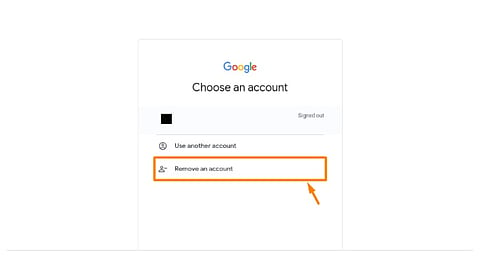
A different option may appear in some cases. Chrome can show Remove account from Chrome, especially after a sign-out from a Google service such as Gmail or when Chrome has an account error. Select that option when it appears. This removes the account from the Chrome browser on that computer without deleting the Google Account itself.
The distinction matters. A Chrome account removal affects the browser connection on the device. The Google Account remains available for Gmail, Google Drive, YouTube, Google Photos, and other Google services. Account data also remains part of the Google Account unless a separate deletion action takes place.
Google also provides a separate Delete data option for Chrome data linked with account sync. That option serves a different purpose from account removal. A person who only wants an account out of the Chrome profile should not treat the two actions as the same.
A Chrome profile holds more than a Google account name. The profile can contain bookmarks, history, passwords, and other browser settings. Chrome provides a separate profile removal option for cases where the entire profile should leave the computer.
Open Chrome and select the profile icon. Next, open Manage Chrome profiles and find the profile linked with the account. Select the three-dot menu for that profile, then choose Delete and confirm the action.
This step has a much larger effect than a normal sign-out. Chrome removes the profile and its local browser data from that computer. Bookmarks, history, passwords, and other settings stored within that profile can disappear from the device.
A full profile removal makes sense when an old account no longer has a place on the computer. A simple sign-out works better when the Chrome profile still has useful browser data that should remain available.
Also Read - How to Detect Unauthorized Access to Your Google Account?
Chrome on Android has a separate route for account removal. Open Chrome and select the three-dot menu. Open Settings, select the account name, then choose Sign out.
This action ends the Chrome connection on the Android device. The Google Account itself remains active. Gmail, Google Drive, YouTube, and other Google services can continue to use the same account.
The Android process differs from the computer process, so the menu names and screen layout may not match the desktop version. Chrome may also present different account controls based on the current account state and Chrome version.
Why This Matters
Removing a Google Account from Chrome helps keep browser access clear and secure. It prevents old or unused accounts from staying visible on a shared or personal computer. The right removal method also helps protect bookmarks, passwords, history, and other Chrome data from accidental loss while keeping the Google Account itself safe.
The main difference comes down to the level of removal required. Sign out of Chrome ends the browser connection while keeping the Chrome profile available. Remove account from Chrome removes the account connection from Chrome when that option appears. Delete a Chrome profile removes the full browser profile and its local data from the computer.
No method here deletes the Google Account itself. That requires a separate action through Google Account settings. This distinction protects important account services from accidental removal.
Chrome can handle several Google accounts on one computer, so account removal does not always require a full profile deletion. A profile can remain useful even after an account connection ends. The safer choice comes from the desired result: remove the account connection, or remove the entire Chrome profile and its local data.
1. Does removing a Google Account from Chrome delete the account?
No. It only removes the account's connection with Chrome on that device.
2. What is the difference between signing out and deleting a Chrome profile?
Signing out ends the Chrome account connection, while deleting a profile removes the entire profile and its local browser data.
3. Can I remove a Google Account from Chrome without losing bookmarks?
Yes. Use the sign-out or account-removal option rather than deleting the entire Chrome profile.
4. How do I remove a Google Account from Chrome on Android?
Open Chrome → Settings → select the account name → Sign out.
5. Will Gmail and Google Drive still work after removing the account from Chrome?
Yes. The Google Account remains active, so its Google services are not deleted.
