.png)

Apple’s latest macOS update adds a virtual lighting tool to brighten faces in video calls.
Edge Light uses the Mac display as a soft light source without extra hardware.
Works across major conferencing apps and adapts to ambient room lighting.
Video calls have become an essential part of our daily routines in work, education, and personal communication, and they all require clear visuals and a professional appearance. Poor lighting can diminish video quality, making even high-end devices render individuals as dull or unclear. As a result, many Mac users are seeking practical ways to improve their lighting for video calls without additional hardware.
The recent Apple update introduces a more intelligent approach to video call lighting. The company has leveraged software to address a long-standing issue in this area. Now, the display serves as a light source, providing better illumination without bulky accessories. For users who are tired of adjusting lamps before every call, this update marks a significant shift toward improved face lighting without a ring light, making video calls feel simpler, sharper, and more seamless than ever.
Also Read: Best Mac and MacBook for Video Editing
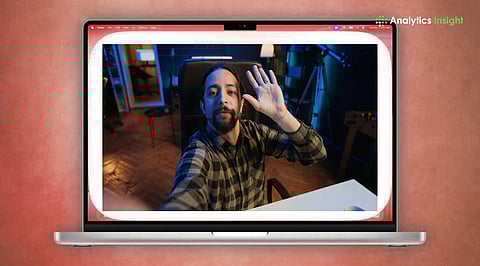
Apple launched macOS 26.2 with a new video effect called Edge Light to help users improve video call lighting on Mac computers. This feature turns the display's edges into a virtual ring light, creating soft, even illumination for the face in low-light environments. Edge Light works with built-in cameras and compatible external webcams, offering a simple way to boost your look in meetings without buying extra lamps or ring lights.
Edge Light is a feature that uses the Mac display to gently illuminate the user's face, recreating the effect of conventional lighting tools without any physical hardware.
Apple’s support guide explains how users can toggle the effect from the Video menu in conferencing apps like Zoom or FaceTime. The system adapts to room brightness and can automatically activate in darker conditions on selected Mac models from 2024 onward, saving time and effort for remote workers, students, and professionals.
To further improve the video call lighting on your Mac, turn your face towards a softer natural light, such as a window, and adjust room lamps to reduce dark shadows. A lot of people also keep their webcam straight in line with their eyes so the angle is more natural. Using the Studio Light or Portrait mode in macOS adds depth and clarity to video for professional calls.
Edge Light supports popular conferencing apps, including Microsoft Teams, Google Meet, WebEx, and FaceTime. It appears alongside other built-in effects like background blur and voice isolation, making it part of a broader Mac video call lighting toolkit. Users should update to macOS 26.2 and have Apple silicon hardware to access these enhancements.
Also Read: What Is the Best Video Converter for Mac?
Apple's Edge Light feature represents a significant advancement in video call lighting on Mac. It transitions from manual adjustments to smarter, more integrated solutions. This new feature not only provides consistent, natural-looking lighting but also reduces the need for external accessories by leveraging the display itself to improve visibility.
As remote meetings have become an integral part of daily life, Apple's initiative to enhance video call lighting reflects a practical shift towards convenience and quality. For those looking for improved face lighting without a ring light, macOS 26.2 offers a streamlined experience that meets the demands of modern work, learning, and communication.
1. How to improve lighting for video calls?
Webcams automatically record and adjust to the brightest light source. And if that light is behind you, you're no longer the focus. Avoid being backlit by facing toward, not away from, a window or another light source.
2. How to brighten a video on a Mac?
Go to the Photos app on your Mac. Double-click a photo or video, then click Edit in the toolbar. Click Adjust on the taskbar. Next to Light, Color, or Black & White, drag the slider until you're satisfied with the photo or video's look, or click Auto to have Photos automatically correct the item.
3. Is a ring light good for video calls?
The Elgato Ring Light WiFi is a beast of a light that'll brighten up even the darkest corners. Plus, you can slap your phone in the middle for recording or use it as a desk light for video calls.
4. Why am I so dark on my webcam?
If it's pointed directly at a light source, the video will be darker. Try angling the webcam so that the light hits it from the side instead.
5. Is a ring light necessary?
Ring lights have become an essential tool for many professionals and hobbyists, from photographers and videographers to makeup artists and content creators. Their ability to create even, soft lighting has made them popular for capturing high-quality images and videos.
