.png)

Most HDMI issues are caused by cables, wrong input selection, or driver errors
Testing with another device helps identify whether the problem is with display or source
Physical damage to HDMI ports usually requires professional repair
HDMI ports are used to connect devices like laptops, gaming consoles, and streaming boxes to a TV or monitor. When HDMI stops working, the screen may stay black, show a ‘No Signal’ message, or play no sound at all. This can be confusing, especially when everything was working fine earlier.
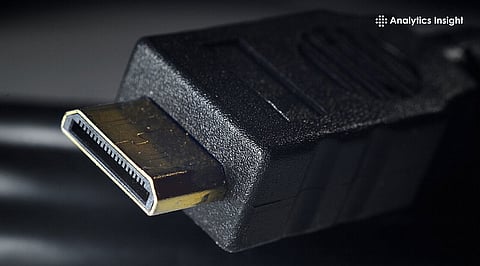
HDMI stands for High-Definition Multimedia Interface. In simple terms, it sends both video and sound through one cable. This means one does not need separate wires for audio and display. If something goes wrong, the problem is usually small, such as a loose cable or an incorrect setting.
HDMI faults usually appear in a few simple ways:
The screen shows ‘No Signal’ even though everything is connected properly.
The picture appears and disappears again and again.
Video is visible, but there is no sound.
The external screen is not detected at all.
The cable is the main cause of the problem. HDMI cables can wear out over time, especially when they are bent often or removed frequently. Using another cable can help check whether the display starts working again.
Most modern televisions and monitors have more than one HDMI port. Connecting the cable to another port is a quick way to understand the source of the issue. If the second port works without any problem, the first one may be damaged. In such cases, using the working port is usually the easiest solution.
Temporary system errors can interfere with HDMI detection. Restarting both devices often helps fix the problem.
For better results, a complete reset can be done:
Turn off both devices.
Disconnect them from the power source for about a minute.
Connect them again and switch them on.
Sometimes the HDMI connection could be working, but the display might be set to the wrong input source. The correct HDMI option such as HDMI 1 or HDMI 2 should be selected manually using the remote. Auto switching does not always work, especially on older screens.
Also Read: How to Quickly Fix Xbox Game Installation Issues: Easy Guide
In laptops and computers, outdated or damaged graphics drivers can block HDMI output. Updating drivers through system settings or the official manufacturer website often solves this issue. If the problem started after an update, returning to the previous version may help.
If none of the basic steps work, the HDMI port should be checked carefully. Warning signs include:
Bent or broken pins.
A loose or shaky connector.
Visible cracks or burn marks.
Physical damage usually needs professional repair, especially in the case of laptops or gaming consoles.
Connecting a different device to the same screen can help identify where the real problem exists.
If the second device works, the first device is likely faulty.
If no device works, the display HDMI port may be damaged.
If software solutions fail and physical damage is present, repair becomes necessary. For televisions and monitors, external HDMI adapters or USB to HDMI converters can work as temporary options. For laptops, repairs often involve the motherboard and can be costly.
Most HDMI problems happen because of simple reasons. The cable may be damaged, the wrong input may be selected, or there may be a driver problem. These issues are usually easy to fix and do not take much time. Only serious physical damage needs help from a professional. If used carefully, HDMI cables and ports can work well for many years.
1. Why does the HDMI screen show No Signal even when connected?
This usually happens due to a faulty cable, wrong input selection, or temporary system error that can often be fixed by restarting devices.
2. Can a damaged HDMI cable cause sound but no picture?
Yes, damaged cables may partially work, allowing audio but blocking video signals due to internal wire breakage.
3. How can outdated drivers affect HDMI performance?
Old or corrupted display drivers may block external display detection and stop HDMI output from working correctly.
4. Is it possible to fix a physically damaged HDMI port at home?
Physical damage usually requires professional repair because HDMI ports are soldered to internal circuit boards.
5. Do HDMI adapters work if the main port stops functioning?
Yes, USB to HDMI or external adapters can provide temporary display solutions when the built-in HDMI port fails.
