.png)

LG Smart TVs allow users to easily install, remove, and organize apps through the webOS platform.
Whether you want to add new streaming services or delete unused apps, the process takes only a few simple steps.
This guide provides detailed instructions for installation and deletion, troubleshooting tips, and ways to organize apps for a better viewing experience.
LG Smart TVs come preloaded with popular streaming services, but one of the biggest advantages of owning a smart television is the ability to customize it. Whether you want to install a new streaming platform, add a music app, or remove unused applications to declutter your screen, LG makes the process straightforward. Let’s take a look at how to add and remove apps on an LG Smart TV.
The operating system for the LG Smart TVs is webOS. Although the design varies slightly depending on the version of webOS on your TV, the procedure for adding and uninstalling apps is the same. In newer versions, the Apps option is available directly from the Home screen, while in older versions it is accessible through the LG Content Store.
Also Read: Is Your Smart TV Lagging? Try These 4 Fixes First Before Upgrading
Follow these steps to install an app:
Press the Home button on your LG remote control to open the Home screen.
Navigate to the Apps section.
Select the Search icon.
Enter the name of the app using the on-screen keyboard.
Select the app from the search results.
Choose Install and wait for the download to complete.
Once installed, select Launch to open the app.
After installation, the app will appear in your apps list on the Home screen.
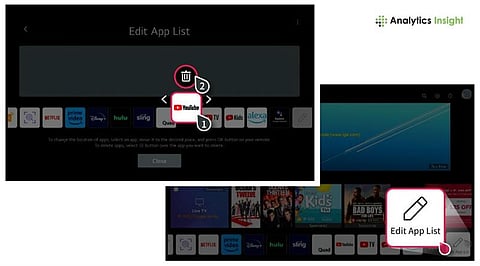
Cleaning up your TV's interface by removing apps you don't use keeps it tidy and more user-friendly. Here's how to delete apps on the majority of LG Smart TVs:
Press the Home button on your remote.
Scroll through the apps row until you see Edit App List at the far right.
Click Edit App List to enter editing mode for the TV.
Highlight the app you want to delete.
Then select the Trash Can icon above the highlighted app.
To finish, confirm the termination of the selected app through a prompt.
Once termination is confirmed, the app will be deleted from your TV. For older LG TVs, users can select the app that they want to remove. It is followed by pressing the OK or center button for a few seconds. Then, the user can select the X icon that appears over the app and confirm deletion.
Certain pre-installed applications on an LG Smart TV cannot be uninstalled because they are built into the operating system. Some of these in-built components are vital for the appliance's operation, and others are part of the software bundle.
In addition to installing and uninstalling apps, you can also reorganize them. To do this, simply go into edit mode and move apps to the order you want. Put the apps you use most at the front of the dashboard so that you can access them quickly. Although uninstalling apps will not significantly improve speed, it can help to keep your device running smoothly by freeing up storage space.
Also Read: Best Smart TVs with Voice Assistants in 2026: Top Picks
You can review your app's installation process to resolve formatting or navigation issues on your Smart TV. If you are still having issues, check that your Internet connection is stable. You may also consider an upgrade of the software to make your Smart TV faster.
Organizing apps on your LG Smart TV is easy once you know the process. Whether you are installing new apps or uninstalling old ones, the webOS platform is designed to make it easy and hassle-free. With a few clicks of the remote, you can customize your Smart TV to suit your entertainment needs.
Where is the LG Content Store located?
On most LG Smart TVs, it is accessible from the Home screen. In older models, it appears as a separate option in the main menu.
How do I delete apps from my LG Smart TV?
Press the Home button, go to Edit App List, select the app, click the Trash icon, and confirm deletion.
Does deleting apps improve LG Smart TV performance?
While it may not dramatically increase speed, removing unused apps can free up storage and keep the interface organized.
Do I need an internet connection to install apps?
Yes, a stable internet connection is required to download and install apps from the LG Content Store.
Can I reinstall a deleted app later?
Yes, you can reinstall any app you previously removed from the LG Content Store.
